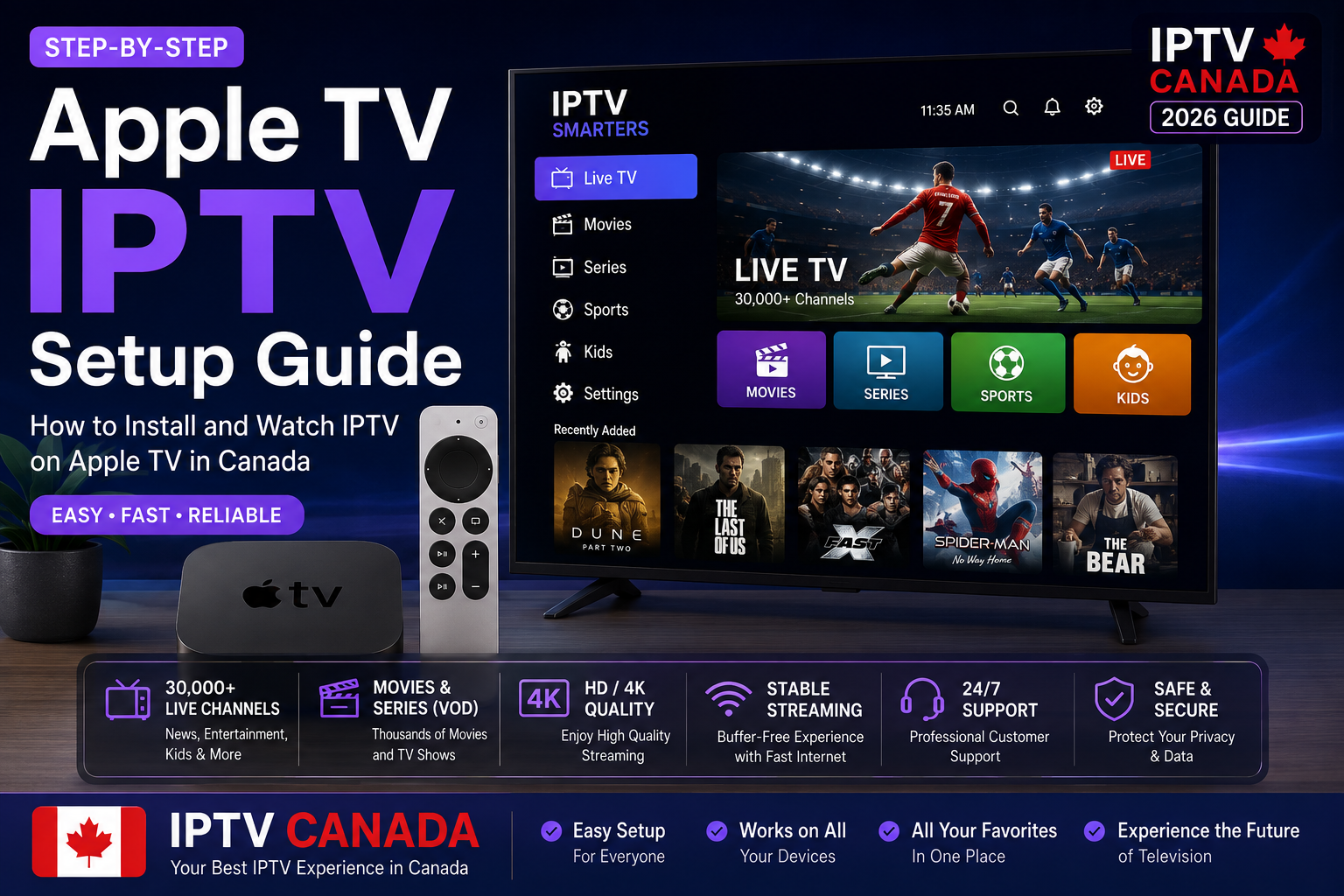
Apple TV is a popular streaming device for Canadian households because of its simple interface, powerful hardware and smooth integration with the Apple ecosystem. If you want to watch IPTV on Apple TV, the setup can be straightforward when you use a compatible IPTV application and a legitimate IPTV service.
For people searching for IPTV Canada, Apple TV can be an attractive option because it provides a clean television experience without the need for a traditional cable box.
In this Apple TV IPTV Setup Guide, we explain what you need, how to install a compatible IPTV application, how to add your IPTV account and how to troubleshoot common streaming problems.
Important: IPTV is a technology for delivering television content over the Internet. Always use IPTV services and content that you are legally authorized to access.
What Is IPTV on Apple TV?
IPTV stands for Internet Protocol Television. Instead of receiving television channels through traditional cable or satellite infrastructure, IPTV delivers video content through an Internet connection.
On Apple TV, IPTV generally works through a dedicated application available through the App Store.
Apple TV uses tvOS, Apple’s operating system for the device. Apple provides an App Store where users can search for and download compatible applications directly onto Apple TV.
This means the exact IPTV installation process can depend on which application you choose and whether it is currently available in your region.
What You Need for an Apple TV IPTV Setup Guide
Before starting, prepare the following:
- Apple TV HD or Apple TV 4K
- Stable Internet connection
- Apple Account
- Compatible IPTV application
- IPTV subscription or playlist
- IPTV login information
Your IPTV provider may provide different types of connection information.
For example, you may receive:
- Username
- Password
- Server URL
- M3U playlist URL
- EPG URL
The information required depends on the IPTV application you use.
Step 1: Connect Your Apple TV to the Internet
Start by connecting your Apple TV to your home network.
You can use Wi-Fi or, on supported models and setups, Ethernet.
For IPTV streaming, a stable connection is important. If your router is close to your Apple TV, a wired connection can provide consistent network performance.
If you use Wi-Fi, place the Apple TV where it receives a strong signal.
Before configuring IPTV, open another streaming application and confirm that your Internet connection is working correctly.
Step 2: Update Your Apple TV
Keeping tvOS updated can improve performance, stability and compatibility.
Apple continues to release tvOS updates for Apple TV devices. Current tvOS updates include performance and stability improvements.
Open the Apple TV settings and check for available software updates.
Using an up-to-date version of tvOS is a good first step before installing and configuring a new application.
Step 3: Open the App Store
From the Apple TV home screen, open the App Store.
Use the search function to look for an IPTV player that is compatible with your Apple TV.
Apple’s App Store allows users to browse applications by category or search directly for a specific application.
The availability of IPTV applications can change over time and may vary by country or region.
For this reason, choose an application that is currently available on your Apple TV and supports the connection method provided by your IPTV service.
Step 4: Install a Compatible IPTV Player
Once you find a suitable IPTV application, open its App Store page.
Review the application information, compatibility, ratings and privacy details before installing it.
Select Get or the appropriate installation option.
After the installation is complete, open the application from your Apple TV home screen.
Some applications may require you to create an account or activate the application before you can add your IPTV service.
Step 5: Add Your IPTV Subscription
Now you can configure your IPTV application.
Depending on the application, you may be able to connect using an M3U playlist, Xtream Codes-style credentials or another supported method.
Enter the information supplied by your IPTV provider.
For example:
Username: Your IPTV username
Password: Your IPTV password
Server: The server address provided by your service
If the application supports an M3U playlist, enter the playlist URL supplied by your provider.
Make sure you copy the information exactly.
A single missing character in a username, password or server URL can prevent the application from connecting.
Step 6: Load Your IPTV Channels
After entering your IPTV information, save the configuration.
The application should connect to the service and begin loading your available content.
Depending on your service, you may see categories such as:
- Live TV
- Sports
- Movies
- Series
- News
- Kids
- International channels
The exact content available depends on your IPTV subscription.
Step 7: Configure the EPG
An EPG, or Electronic Program Guide, provides information about television programs and schedules.
If your IPTV provider supplies an EPG URL, you may be able to add it inside your IPTV application’s settings.
Once configured, the guide can make it easier to browse live channels and see upcoming programs.
If the EPG does not load, verify the URL and check whether your IPTV application supports the EPG format provided by your service.
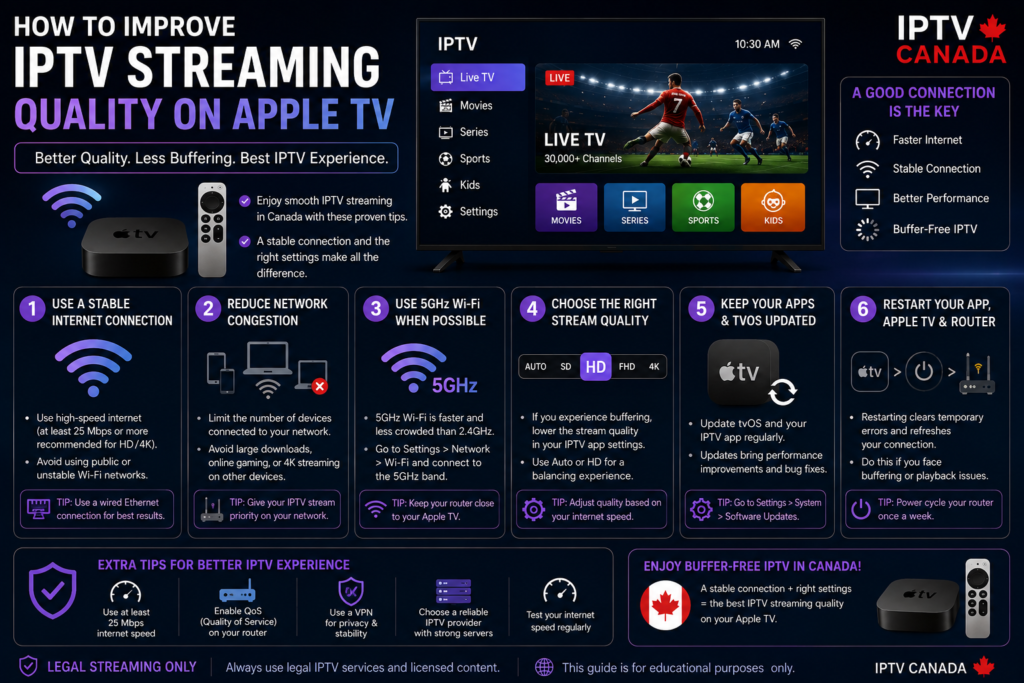
How to Improve IPTV Streaming Quality on Apple TV
A good Apple TV IPTV Canada setup also depends on your home network.
Use a Stable Internet Connection
A reliable Internet connection can help reduce buffering.
If your Apple TV is connected through Wi-Fi and experiences instability, try improving the router position or switching to Ethernet when available.
Reduce Network Congestion
Multiple devices using your Internet connection at the same time can affect streaming performance.
Large downloads, cloud backups, gaming and other high-bandwidth activities can compete for network resources.
Try reducing unnecessary network activity while watching IPTV.
Keep Your Apps Updated
Make sure your IPTV application and tvOS are kept up to date.
Updates can provide bug fixes, performance improvements and compatibility improvements.
Restart Apple TV and Your Router
If IPTV suddenly starts buffering, restart both your Apple TV and router.
This can resolve temporary network or application problems.
Common IPTV Problems on Apple TV
IPTV App Is Not Available
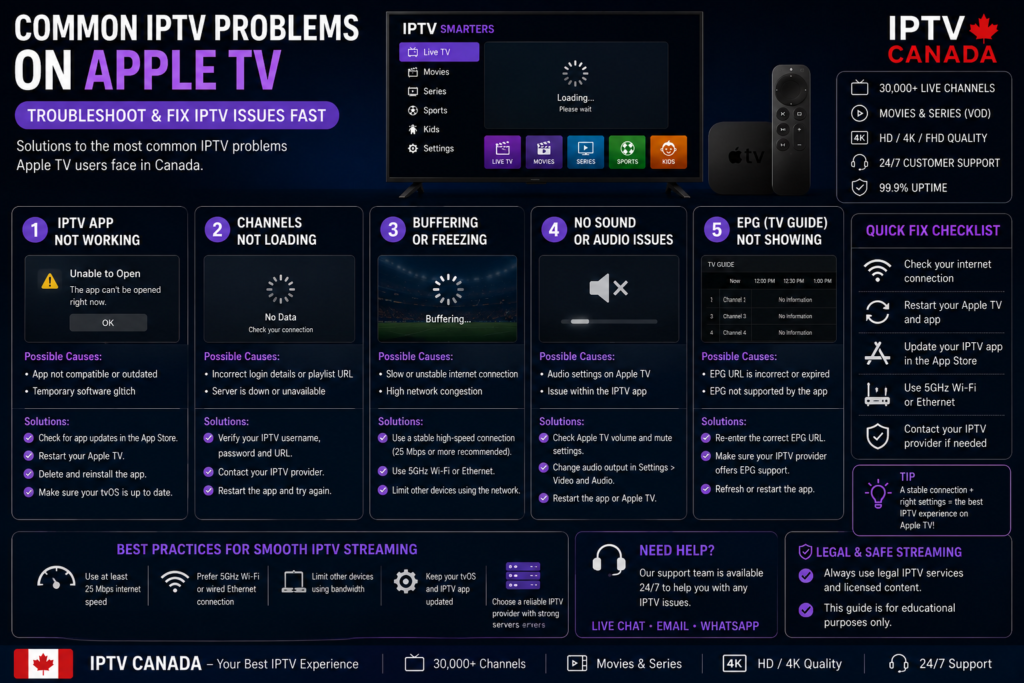
If you cannot find the IPTV application you want, it may not currently be available for Apple TV or your region.
Apple TV uses Apple’s app distribution and code-signing system, meaning applications must meet Apple’s platform requirements.
In this situation, consider another compatible IPTV application or use another streaming platform.
IPTV Channels Are Not Loading
Check your IPTV credentials first.
Make sure your username, password, server URL or playlist URL is correct.
If the information is correct and the problem continues, contact your IPTV provider to verify your account and service.
IPTV Keeps Buffering
Buffering can result from weak Wi-Fi, network congestion, application issues or problems affecting the streaming service.
Try restarting your router, improving your Wi-Fi connection or using Ethernet if possible.
EPG Is Missing
If your channels work but the program guide does not appear, check the EPG URL.
The EPG may need to be configured separately inside the IPTV application.
Apple TV vs Android TV for IPTV
Apple TV and Android TV offer different experiences.
Apple TV provides a polished interface, strong integration with the Apple ecosystem and a controlled application environment.
Android TV offers a broader Android-based application ecosystem and can provide more flexibility depending on the device.
If you already own Apple devices such as an iPhone, iPad or Mac, Apple TV can be a convenient addition to your home entertainment system.
If you prefer more application flexibility, Android TV may be worth considering.
You can read our related guide:
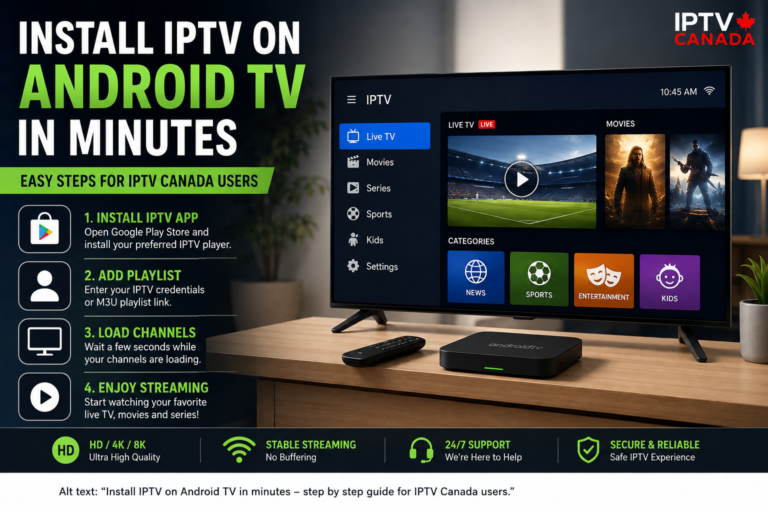
Install IPTV on Android TV in Minutes
Other IPTV Installation Options for Canadian Homes
Apple TV is only one option for Canadian IPTV users.
If you have a different device, you can follow one of our dedicated installation guides.
Best IPTV Devices for Canadian Homes
Our Best IPTV Devices for Canadian Homes guide compares popular options such as Android TV, Amazon Firestick, Samsung Smart TV, LG Smart TV and Android TV boxes.
It can help you choose the right hardware before starting your IPTV setup.
How to Install IPTV on Amazon Firestick
Amazon Firestick is another popular streaming option.
Read:
How to Install IPTV on Amazon Firestick
to learn how to configure a compatible IPTV application on Fire TV.
How to Watch IPTV on Samsung Smart TV
If you already own a Samsung television, you may be able to use a compatible IPTV application directly on the TV.
Read:
How to Watch IPTV on Samsung Smart TV
for a dedicated Samsung setup guide.
IPTV Installation Guide for LG Smart TVs
LG Smart TVs use their own software platform and application ecosystem.
Our:
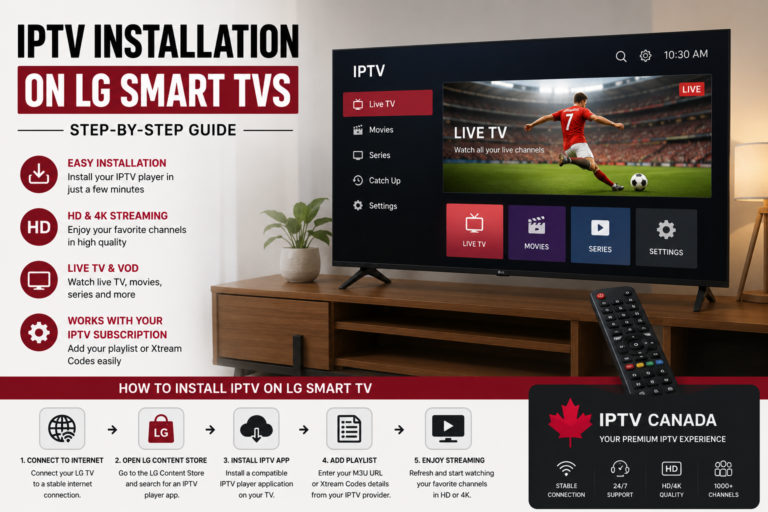
IPTV Installation Guide for LG Smart TVs
explains the basic installation and configuration process.
Is Apple TV Good for IPTV Canada?
Apple TV can be an excellent choice for Canadian households that want a clean, responsive and simple streaming experience.
Its main advantages include a polished interface, strong hardware and access to applications through the App Store.
However, IPTV application availability can vary, so it is important to check that your preferred application is currently compatible with Apple TV and available in your region.
Your Internet connection is equally important. Even the best streaming hardware cannot compensate for an unstable home network.
Final Thoughts
Setting up IPTV on Apple TV can be relatively simple when you have a compatible IPTV application and the correct account information.
The basic process is:
- Connect Apple TV to the Internet.
- Update tvOS.
- Open the App Store.
- Install a compatible IPTV application.
- Add your IPTV credentials or playlist.
- Load your channels.
- Configure the EPG if supported.
- Optimize your network for better streaming.
For Canadian viewers searching for IPTV Canada, Apple TV provides another convenient option alongside Android TV, Firestick, Samsung Smart TV and LG Smart TV.
If Apple TV is not the right device for your home, explore our other installation guides and compare the available IPTV devices before making your choice.
Always use IPTV services and content that you are legally authorized to access.