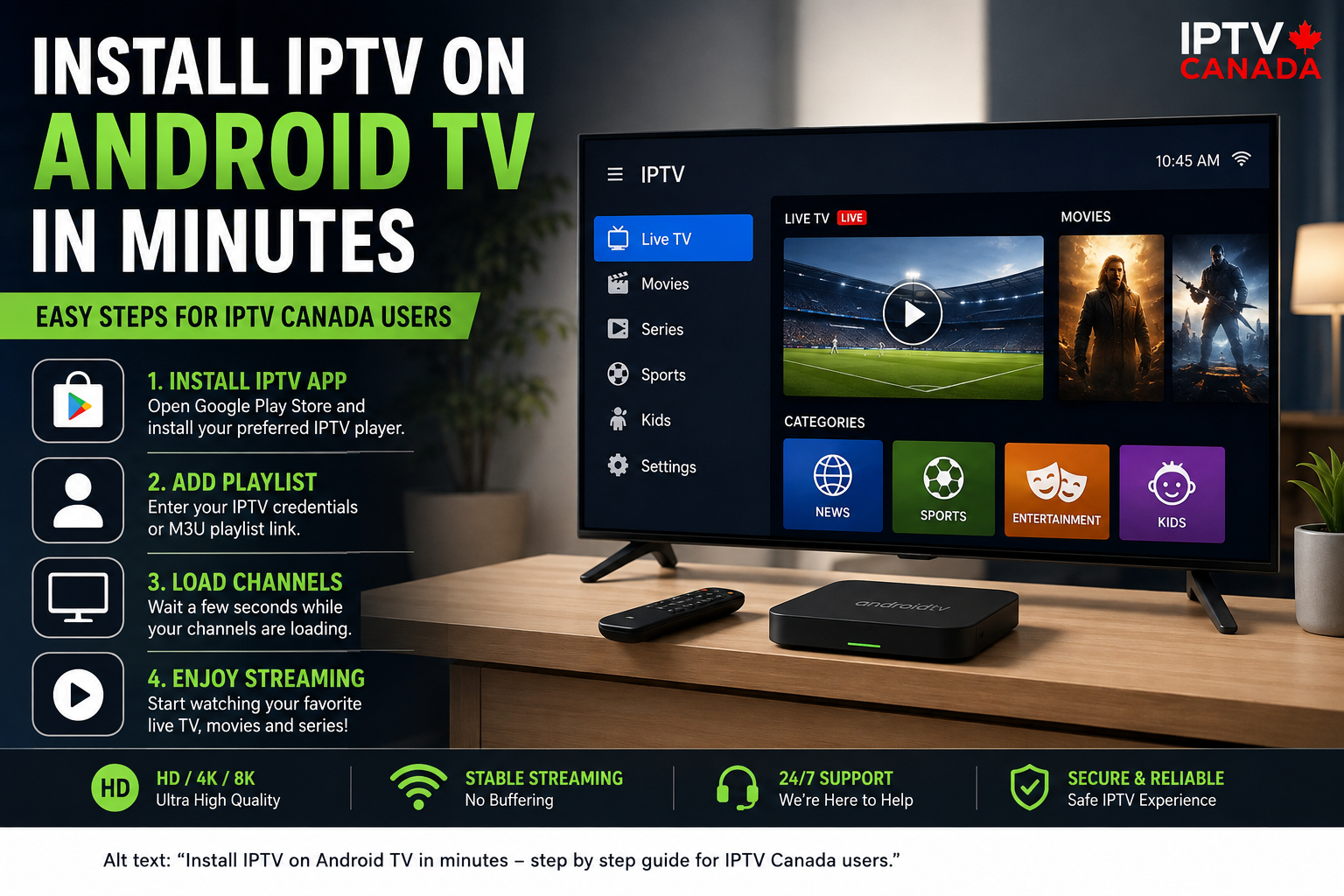
Installing IPTV on Android TV can be much easier than many Canadian viewers expect. Whether you have a Sony, TCL, Hisense, Philips, Xiaomi or another Android TV device, you can usually start watching your IPTV service within a few minutes.
For users searching for IPTV Canada, Android TV is one of the most convenient platforms because it supports a wide range of streaming applications and provides an easy-to-use interface directly on your television.
In this guide, we explain how to install IPTV on Android TV, how to configure your IPTV player, how to improve streaming quality and what to check when IPTV does not work correctly.
Important: IPTV is a technology used to deliver television content over an Internet connection. Always use IPTV services and content that you are legally authorized to access in your region.
What Is IPTV on Android TV?
IPTV stands for Internet Protocol Television. Instead of receiving television channels through traditional cable or satellite infrastructure, IPTV delivers television content through an Internet connection.
For Canadian households, IPTV can be particularly convenient because Android TV combines streaming applications, live television and other entertainment services on one screen.
A typical IPTV setup requires three things:
- An Android TV or Android TV Box
- A stable Internet connection
- A compatible IPTV player and a legitimate IPTV subscription or playlist
The IPTV player itself normally does not provide television channels. It acts as an interface that loads the content supplied by your IPTV provider.
Why Choose Android TV for IPTV Canada?
Android TV is popular among IPTV users because of its flexibility and compatibility with many streaming applications.
One of the biggest advantages is that you can install applications directly through the Google Play Store when the application is available there. You can also use compatible IPTV players to organize live channels, movies, series and electronic program guides.
Android TV also works with common home-network configurations, including Wi-Fi and Ethernet.
For the best IPTV Canada experience, an Ethernet connection is often preferable when your television or Android TV box is located close to your router.
What You Need Before Installing IPTV
Before starting the installation, make sure your Android TV is connected to the Internet.
A stable connection is more important than simply having a very high download speed. If several people are using the same network for gaming, video calls or large downloads, IPTV playback can become less stable.
You should also have your IPTV provider’s login information ready.
Depending on the service and IPTV player, you may receive:
- An M3U playlist URL
- An Xtream Codes username and password
- An EPG URL
- A portal URL
Your provider should explain which connection method is supported.
How to Install IPTV on Android TV
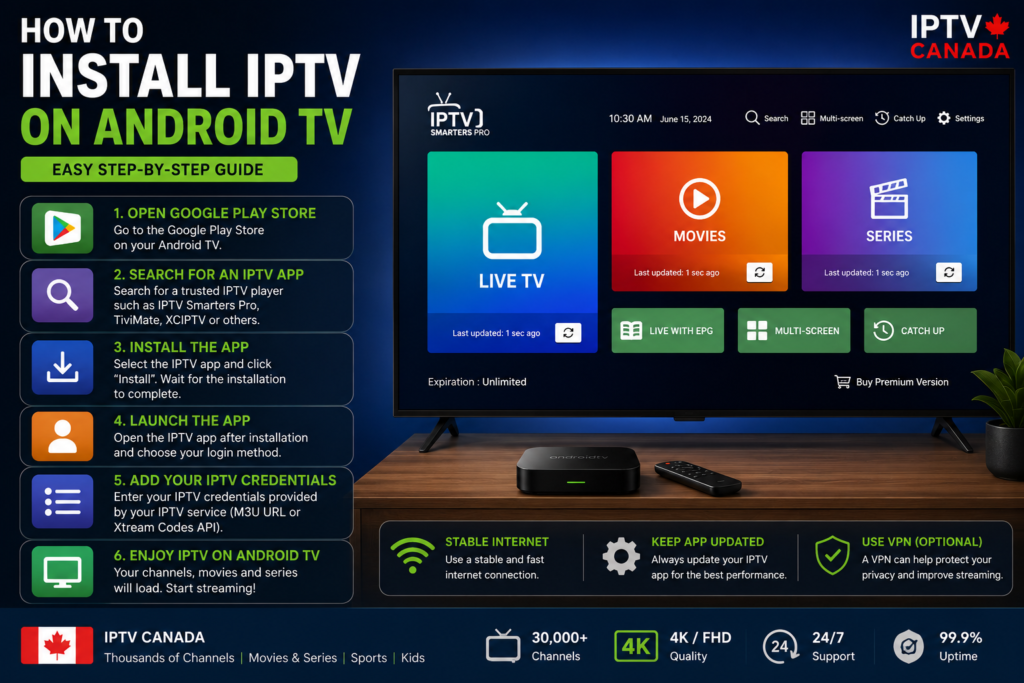
Step 1: Connect Your Android TV to the Internet
Turn on your Android TV and open the network settings.
Connect using Wi-Fi or Ethernet. If possible, use a wired Ethernet connection for a more consistent connection.
Once connected, test another streaming application to confirm that your Internet connection is working correctly.
Step 2: Open the Google Play Store
From the Android TV home screen, open the Google Play Store.
Use the search function to find a compatible IPTV player.
There are several IPTV player applications available for Android TV. The exact applications visible to you may vary depending on your device, region and current Play Store availability.
Choose a reputable player that supports your provider’s playlist format.
Step 3: Install Your IPTV Player
Select the IPTV application and choose Install.
Wait for the installation to finish. Once installed, open the application.
At this point, the IPTV player may ask you to select a connection method.
Common options include:
- M3U Playlist
- Xtream Codes API
- Portal
- Username and Password
Choose the method supplied by your IPTV provider.
Step 4: Add Your IPTV Subscription
Enter the information provided by your IPTV service.
For example, if your provider gives you Xtream Codes credentials, you may need to enter:
Username: Your IPTV username
Password: Your IPTV password
Server URL: The server address provided by your service
Make sure every detail is entered correctly.
A small spelling mistake in the server URL or password can prevent the IPTV player from connecting.
Step 5: Load Your Channels
After entering your credentials, save the configuration.
The application should connect to the IPTV server and begin loading your available content.
Depending on the service, you may see categories such as:
- Live TV
- Sports
- Movies
- Series
- News
- Kids
- International channels
The loading time depends on your Internet connection, IPTV server and the amount of content associated with your account.
Step 6: Configure the EPG
An EPG, or Electronic Program Guide, displays television schedules and program information.
If your IPTV provider supplies an EPG URL, add it inside your IPTV application’s settings.
A correctly configured EPG can make browsing live channels much easier because you can see what is currently playing and what is scheduled next.
If the EPG does not appear, check the URL supplied by your provider and refresh the guide.
How to Improve IPTV Streaming Quality in Canada
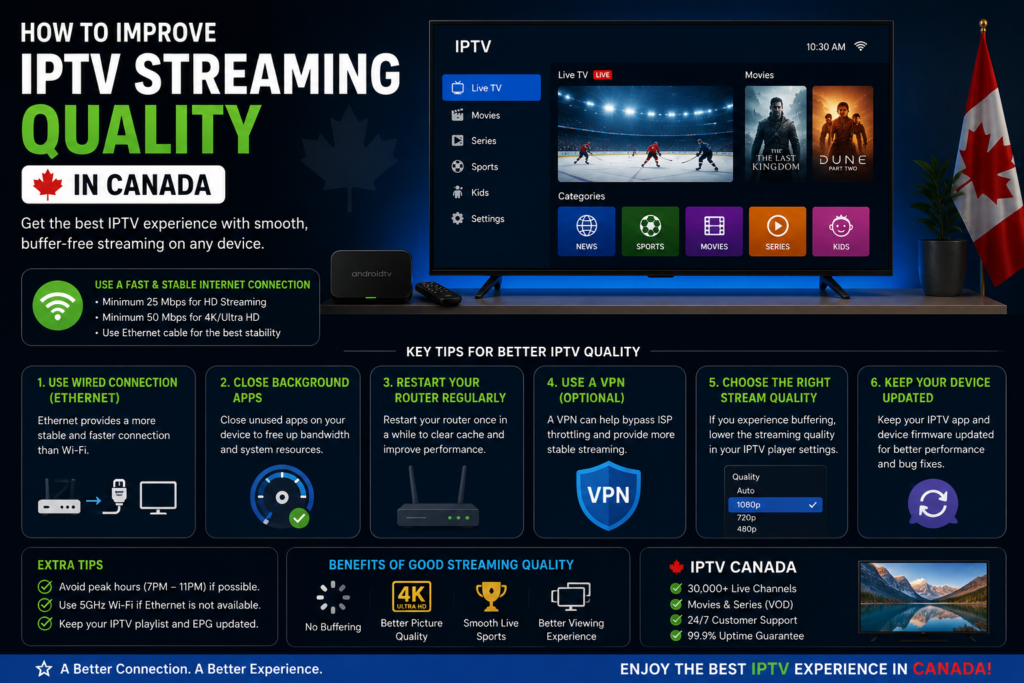
Even with a good IPTV service, streaming problems can sometimes be caused by the home network or Android TV device.
Here are several ways to improve performance.
Use Ethernet When Possible
Wi-Fi is convenient, but Ethernet can provide a more consistent connection.
If your Android TV is close to your router, connect it directly using an Ethernet cable.
Restart Your Router
If IPTV suddenly starts buffering, restart your router.
This simple step can resolve temporary network problems and reconnect your devices.
Reduce Network Congestion
If multiple devices are using your Internet connection simultaneously, IPTV may experience buffering.
Pause large downloads or high-bandwidth activities while watching live television.
Keep Android TV Updated
Check your Android TV system for available software updates.
You should also keep your IPTV player updated when new versions are available.
Updates can improve stability, compatibility and security.
Common IPTV Problems on Android TV
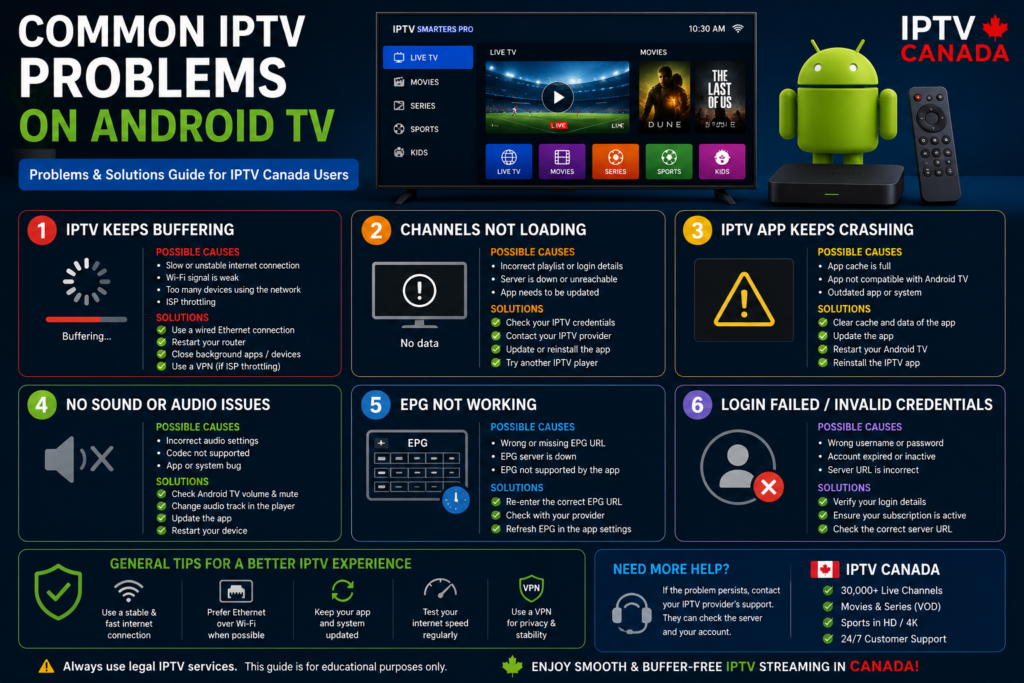
IPTV Keeps Buffering
Buffering can be caused by network congestion, weak Wi-Fi, server-side problems or an overloaded home network.
Try switching to Ethernet, restarting your router and testing another streaming application.
IPTV Channels Are Not Loading
First, verify your IPTV credentials.
If your username, password or server URL is incorrect, the player may not load your channel list.
You can also contact your IPTV provider to confirm that your subscription is active.
IPTV App Crashes
If the application repeatedly crashes, clear its cache from the Android TV application settings.
If that does not solve the problem, update or reinstall the application.
No Program Guide
If channels work but the EPG is empty, check your EPG configuration.
The EPG URL may need to be entered separately from your main IPTV playlist.
Best IPTV Devices for Canadian Homes
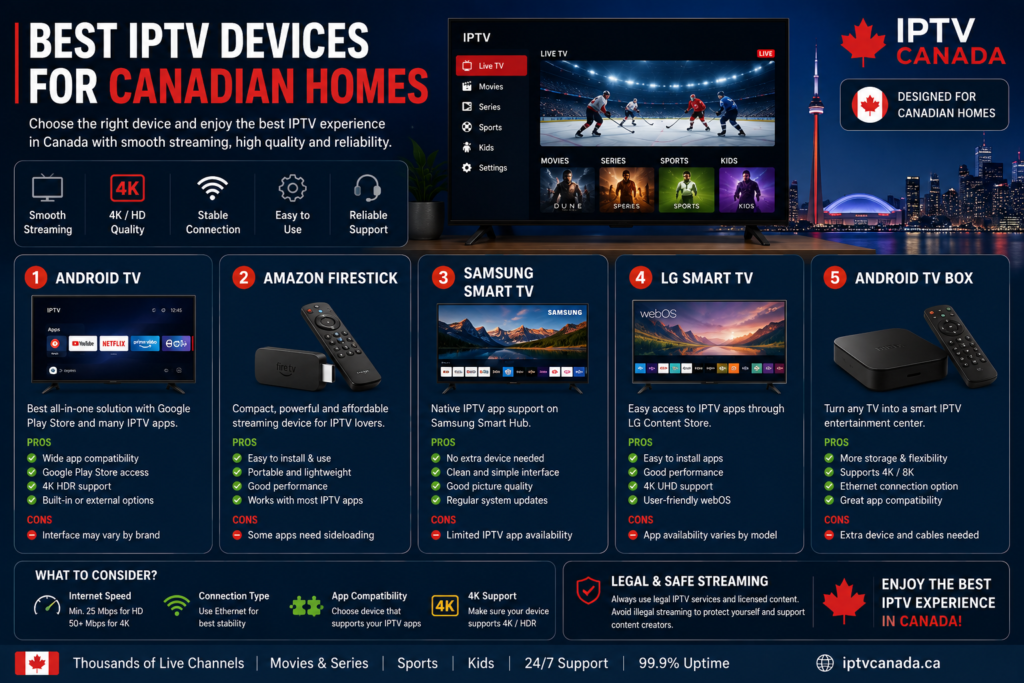
Android TV is not the only option for watching IPTV.
Canadian households can choose from several streaming devices depending on their television and preferred setup.
For example, Android TV boxes are flexible and provide access to many applications. Amazon Fire TV devices are also popular for streaming, while Smart TVs from Samsung and LG provide IPTV-compatible applications depending on the model and available app store.
Choosing the right device depends on your television, Internet connection, desired applications and budget.
For a detailed comparison, see our upcoming guide:
Best IPTV Subscription Devices for Canadian Homes
This article can compare Android TV, Amazon Firestick, Smart TVs and other popular streaming devices for Canadian users.
How to Install IPTV on Amazon Firestick
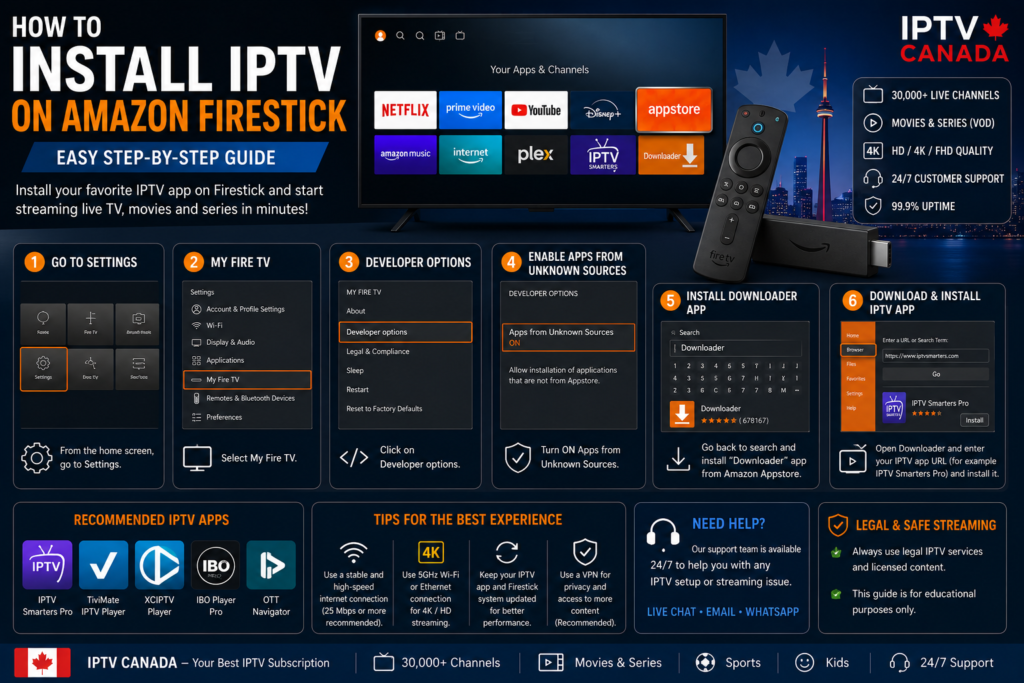
Amazon Firestick is another popular option for IPTV users.
The installation process is different from Android TV because Fire TV uses Amazon’s application ecosystem.
If you are using a Firestick, follow a dedicated installation guide rather than applying Android TV instructions directly.
Read our related guide:
How to Install IPTV on Amazon Firestick
The article can explain the complete Firestick setup process, including installing a compatible IPTV player and configuring your legitimate IPTV credentials.
How to Watch IPTV on Samsung Smart TV
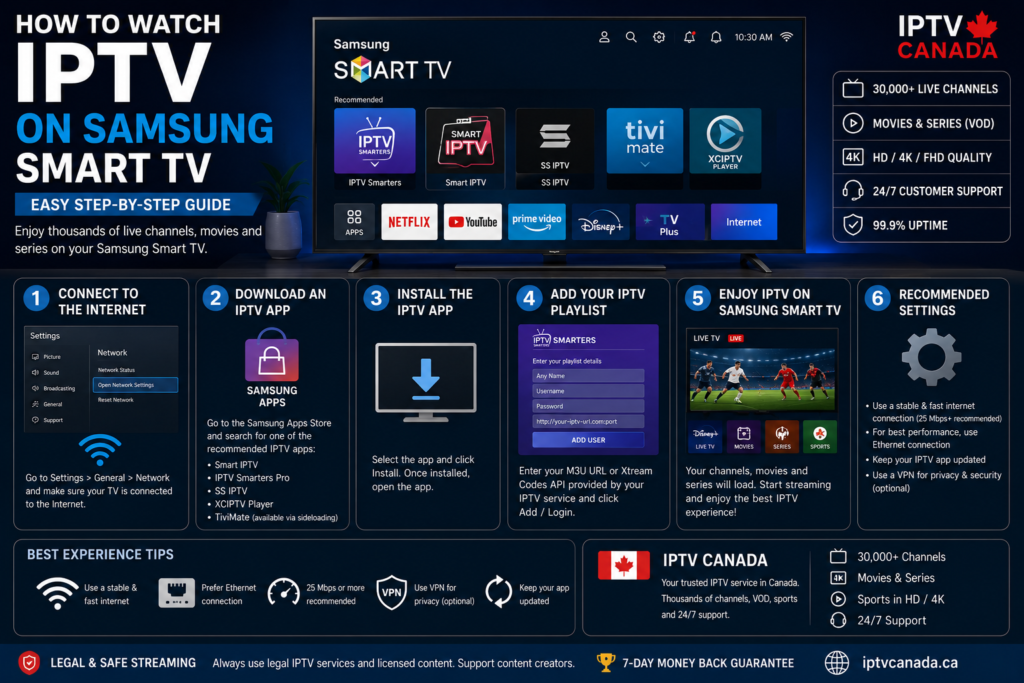
Samsung Smart TVs use Samsung’s Smart TV platform rather than standard Android TV.
This means the application installation process can be different.
Depending on the television model and region, you may find compatible IPTV players through the Samsung app ecosystem.
For Samsung owners, our dedicated guide will explain:
How to Watch IPTV on Samsung Smart TV
The goal is to help Canadian viewers configure IPTV without purchasing an additional streaming box when their television already supports the required applications.
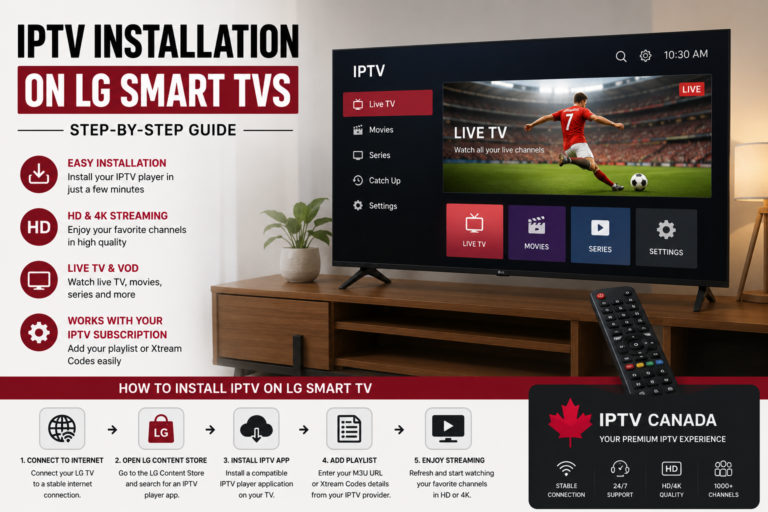
IPTV Installation Guide for LG Smart TVs
LG Smart TVs also have their own operating environment.
If you own an LG television, the installation process can therefore differ from Android TV and Firestick.
Our dedicated guide:
IPTV Installation Guide for LG Smart TVs
will cover the basic steps for finding a compatible application, adding your IPTV credentials and troubleshooting common playback issues.
Is Android TV a Good Choice for IPTV Canada?
For many Canadian households, Android TV is a practical IPTV platform because it combines a television interface with access to a large selection of streaming applications.
It is especially useful for viewers who want flexibility and prefer controlling their entertainment from one device.
However, your final experience depends on several factors, including the quality and legality of your IPTV service, your Internet connection, your device hardware and the IPTV player you choose.
Final Thoughts
Installing IPTV on Android TV does not have to be complicated.
The basic process is straightforward: connect your Android TV to the Internet, install a compatible IPTV player, enter the credentials supplied by your IPTV provider and load your channels.
For the best IPTV Canada experience, use a stable Internet connection, keep your Android TV and applications updated, and troubleshoot your network before assuming that the IPTV application itself is responsible for playback problems.
If Android TV is not the right option for your home, you can also explore other platforms such as Firestick, Samsung Smart TV and LG Smart TV.
With the right device, a reliable Internet connection and a properly configured IPTV player, you can create a convenient streaming setup designed around your Canadian home entertainment needs.