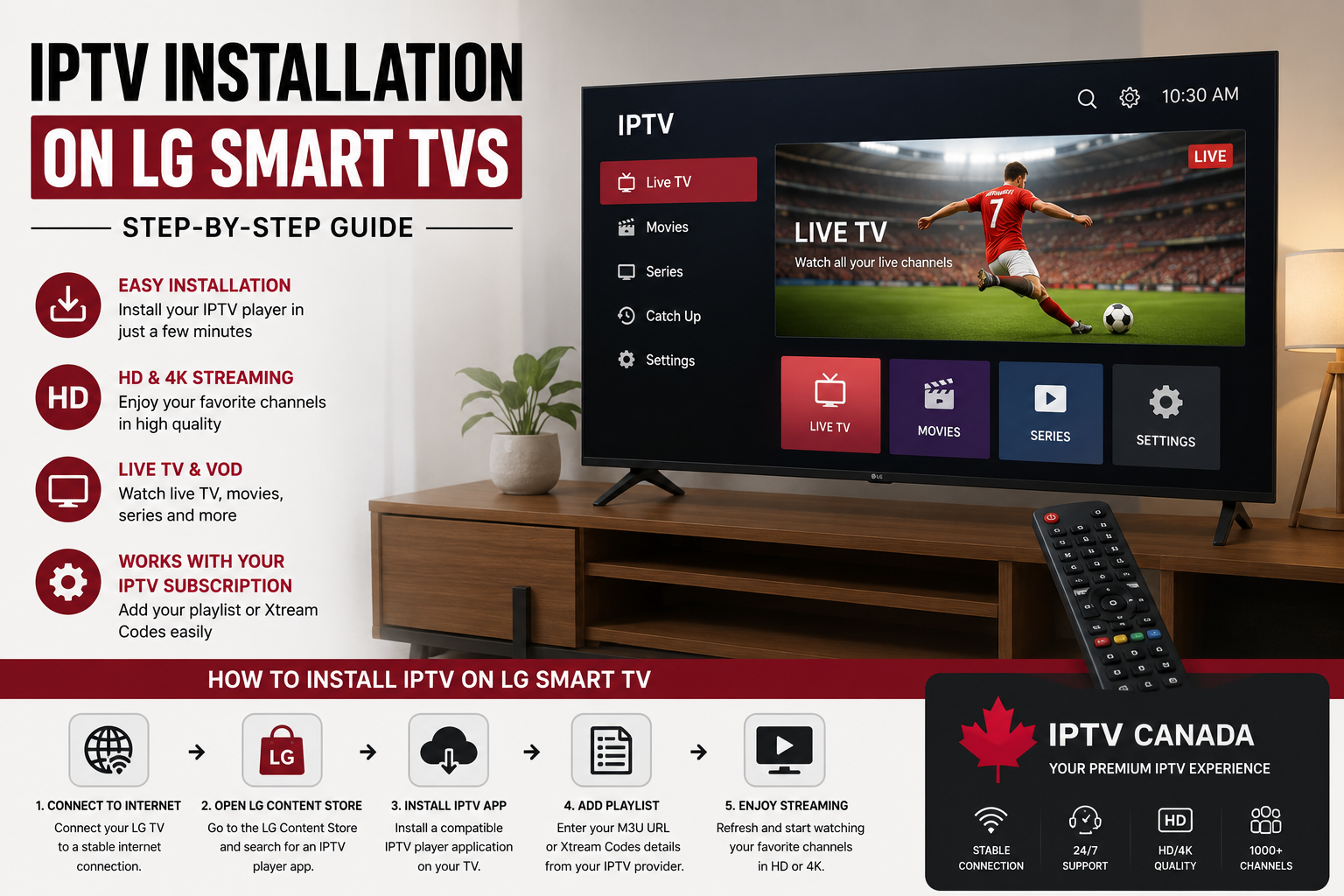
Watching IPTV Canada on a modern LG Smart TV can be a convenient way to access live television, on-demand content, and other streaming services from one screen. If you are looking for how to install IPTV on LG Smart TV, the process is generally simple once you understand how IPTV players work.
This guide explains the complete setup process for LG Smart TVs, including how to choose an IPTV player, install it, add your subscription details, and optimize your connection for a smoother experience in Canada.
Important: IPTV is a technology used to deliver television content over the internet. Make sure you use IPTV services and channels that you are legally authorized to access in your location.
What Is IPTV on an LG Smart TV?
IPTV, or Internet Protocol Television, delivers television content through an internet connection rather than traditional cable or satellite infrastructure.
With an LG Smart TV, you can use a compatible IPTV player to organize and play your IPTV content. Depending on the application and service you use, features may include:
- Live TV
- Video on Demand (VOD)
- TV series
- Electronic Program Guide (EPG)
- Catch-Up functionality
- Favorites
- Multiple categories
- HD and 4K playback when supported
For users searching for IPTV Canada, an LG Smart TV can be a practical device because you can access your IPTV player directly from the television without necessarily needing an additional streaming box.
What You Need Before Installing IPTV on LG Smart TV
Before starting the installation, make sure you have everything required.
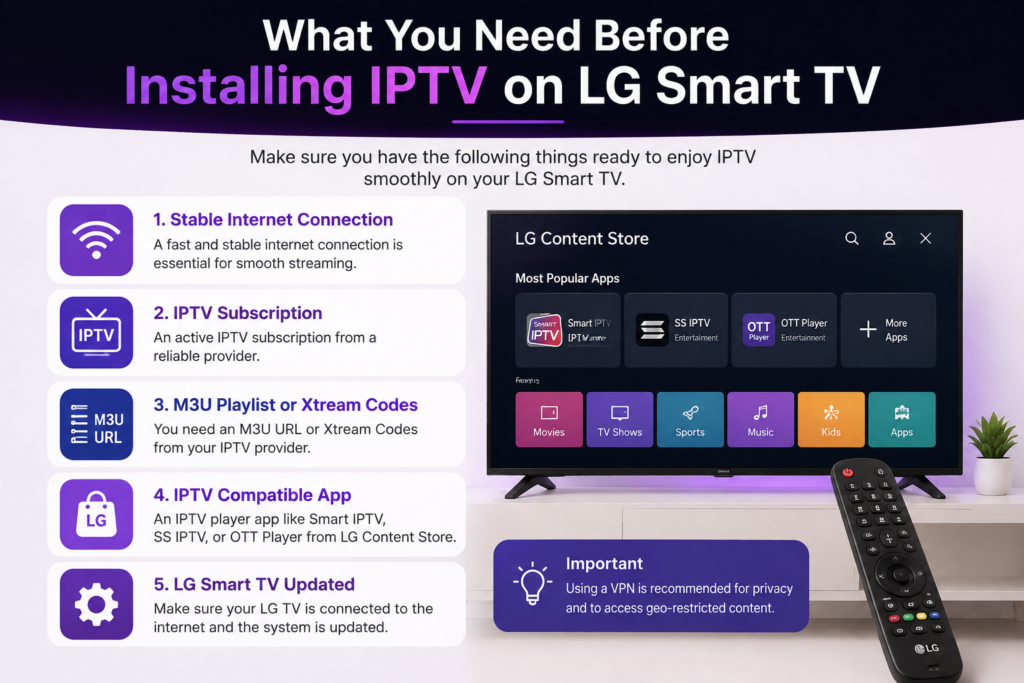
1. A compatible LG Smart TV
Your LG television should have internet connectivity and access to the LG Content Store. The exact applications available can vary depending on your TV model, webOS version, and region.
2. A stable internet connection
A reliable internet connection is important for IPTV streaming. For HD and especially 4K content, your connection should have enough bandwidth and stability to handle continuous video streaming.
For an IPTV Canada subscription, a stable home network can make a significant difference, particularly when watching high-resolution content.
3. An IPTV subscription or playlist
An IPTV player normally does not provide television channels by itself. You need a legitimate IPTV service or playlist that provides your authorized content.
Depending on the provider and application, you may receive:
- M3U playlist information
- Xtream Codes credentials
- Server/portal information
- Username and password
Keep these details available before opening your IPTV application.
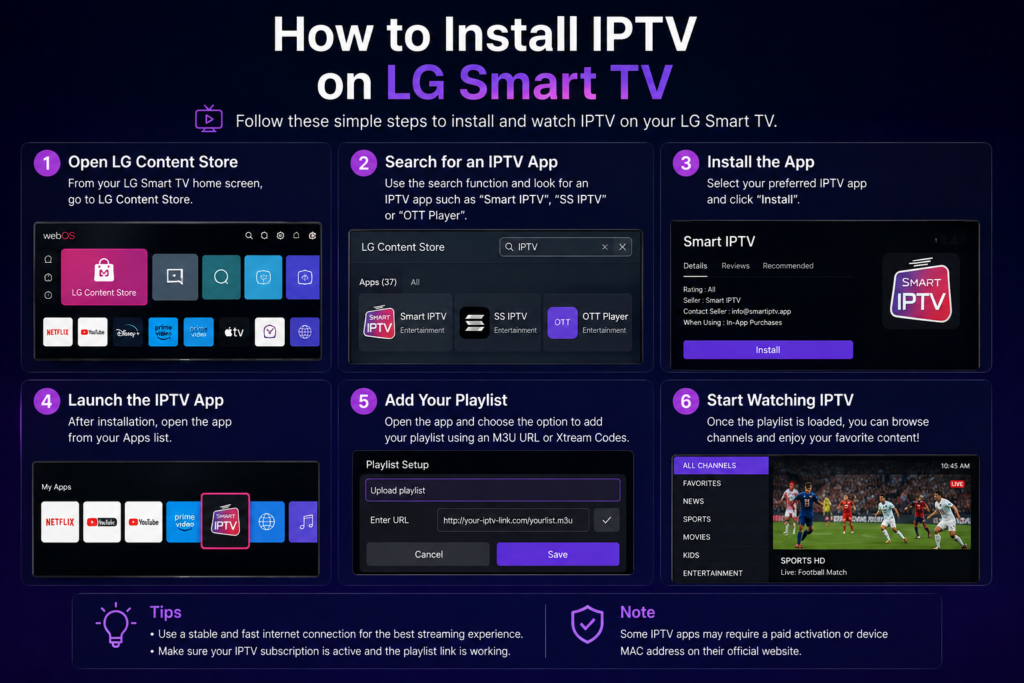
How to Install IPTV on LG Smart TV
The exact installation process depends on the IPTV player you choose, but the general method is similar.
Step 1: Connect Your LG TV to the Internet
First, connect your LG Smart TV to your home network.
Go to:
Settings → Network → Wi-Fi or Wired Connection
If possible, an Ethernet connection can provide additional stability compared with Wi-Fi, especially when streaming high-quality video.
Once connected, test whether applications such as YouTube or another streaming service can access the internet.
Step 2: Open the LG Content Store
From your LG Smart TV home screen, open the LG Content Store.
The store allows you to search for applications compatible with your television.
Search for an IPTV player that is available for your specific LG TV and region.
Because application availability can change, the exact IPTV player you see may differ from another LG Smart TV.
Step 3: Install a Compatible IPTV Player
Select the IPTV player you want to use and choose Install.
Wait for the installation to finish, then launch the application.
Remember that an IPTV player is normally just the software used to organize and play your content. It does not automatically include channels.
Step 4: Add Your IPTV Subscription
When you open the IPTV application for the first time, you may see several options for adding your playlist or account.
Common methods include:
M3U URL:
Enter the playlist URL provided by your IPTV service.
Xtream Codes:
Enter the server URL, username, and password supplied by the service.
Portal information:
Some applications use a portal address or another login method.
Always copy your credentials carefully. A single incorrect character can prevent the playlist from loading.
Step 5: Wait for the Channels to Load
After entering your information, the application should connect to the appropriate service and load the available categories.
Depending on the service, you may see sections such as:
- Live TV
- Movies
- Series
- Sports
- News
- Kids
- Favorites
The available content depends entirely on the IPTV service or playlist you are using.
How to Optimize IPTV on LG Smart TV
Installing IPTV is only the first step. Your network and TV settings can also influence the streaming experience.
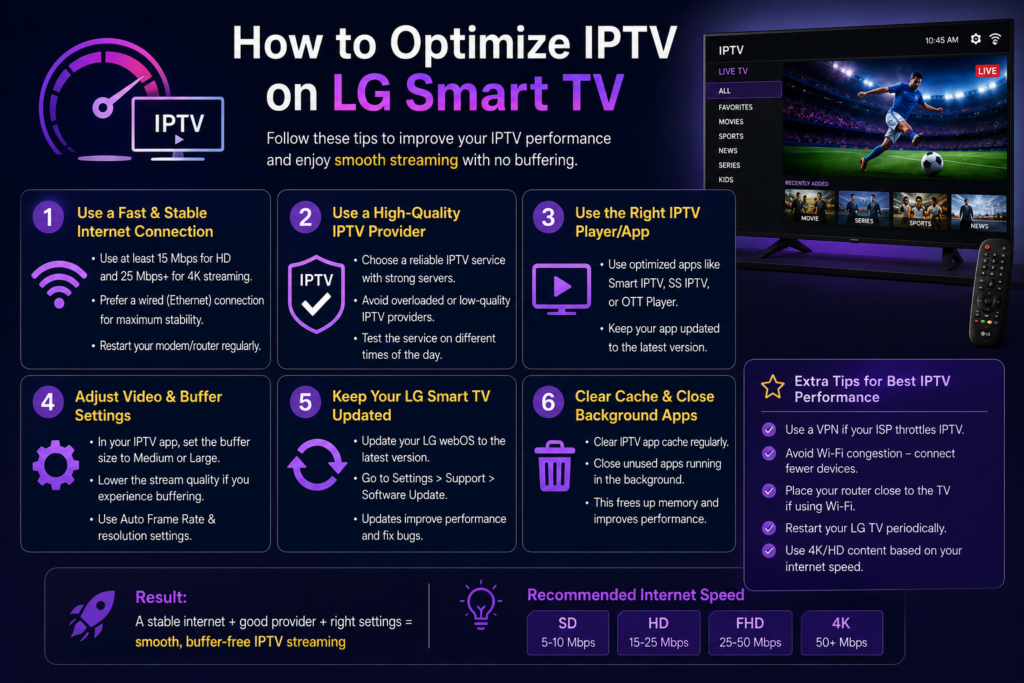
Use Ethernet When Possible
If your router is close enough to your television, consider using an Ethernet cable.
A wired connection can reduce Wi-Fi interference and provide a more consistent connection, which can be useful when watching high-quality IPTV streams.
Optimize Your Wi-Fi
If Ethernet is not practical, place your router in a central location and avoid unnecessary obstacles between the router and TV.
A modern 5 GHz Wi-Fi network can also be useful when your devices support it.
Avoid Excessive Network Usage
If several devices are simultaneously downloading large files, playing online games, or streaming high-resolution video, your available bandwidth can be reduced.
For a smoother IPTV Canada experience, try to limit unnecessary network traffic while watching demanding streams.
Keep Your LG TV Updated
Check your LG TV for available software and application updates.
Updates can improve compatibility, stability, and overall performance.
IPTV on LG Smart TV vs Firestick
An LG Smart TV can run IPTV applications directly, which means you may not need an additional streaming device.
However, some users prefer the flexibility of a Firestick or another streaming device.
If you also use Amazon’s streaming hardware, check our complete guide:
How to Install IPTV on Amazon Firestick
This guide explains the installation process specifically for Firestick users.
IPTV on LG vs Samsung Smart TV
The IPTV installation experience can also differ between LG and Samsung televisions because they use different operating systems and application stores.
If you have a Samsung television, our dedicated guide can help:
How to Watch IPTV on Samsung Smart TV
For households with several Smart TV brands, understanding these differences can make it easier to choose the right IPTV player for each device.
Common IPTV Problems on LG Smart TV
Even after completing the installation, you may occasionally experience problems.
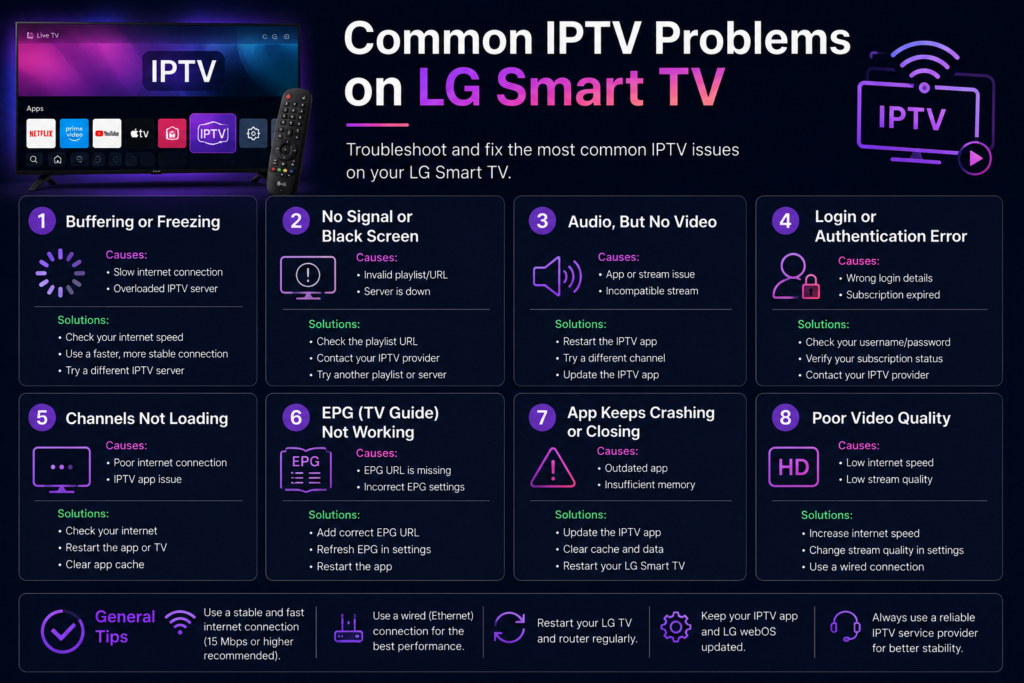
IPTV App Cannot Be Found
The application may not be available for your LG model or region. Check the LG Content Store and make sure your TV software is up to date.
Channels Are Not Loading
Double-check your M3U URL, Xtream Codes, username, password, or server information.
If the credentials are correct but the playlist still does not load, contact your IPTV service provider.
IPTV Keeps Buffering
Buffering can be caused by several factors, including network congestion, weak Wi-Fi, insufficient bandwidth, or problems with the streaming source.
Try using Ethernet, restarting your router, reducing network activity, and testing another stream.
4K Content Is Not Smooth
4K streaming requires more bandwidth and processing capability than standard HD streaming.
If 4K playback is unstable, test your internet connection and confirm that your LG TV and IPTV application support the required format.
Is IPTV Legal in Canada?
IPTV itself is a technology and is not automatically illegal. The important issue is whether the service provides content with the appropriate rights and authorization.
If you are searching for IPTV Canada or an IPTV Canada subscription, always consider the legitimacy of the service and whether the content you are accessing is authorized.
Avoid services that make unrealistic promises, provide suspiciously low prices, or offer copyrighted content without clear authorization.
Frequently Asked Questions
Can I install IPTV directly on an LG Smart TV?
Yes. If a compatible IPTV player is available through the LG Content Store for your TV and region, you can install it directly without an additional streaming device.
Does LG Smart TV come with IPTV channels?
No. An IPTV player is generally an application used to play and organize IPTV content. You need an appropriate playlist or authorized IPTV service separately.
Do I need a Firestick for IPTV on LG TV?
No. If your LG Smart TV supports a compatible IPTV application, you can use the television directly. A Firestick is an alternative option rather than a requirement.
Can I watch IPTV in 4K on LG Smart TV?
Potentially, yes. Your TV, IPTV application, internet connection, and streaming source must all support 4K.
Is IPTV available in Canada?
IPTV technology is available in Canada, but the legality of particular content depends on whether the provider has the necessary rights to distribute it.
Final Thoughts
Learning how to install IPTV on LG Smart TV is relatively straightforward. The main steps are connecting your television to the internet, finding a compatible IPTV player, installing it through the LG Content Store, and entering the playlist or account information provided by your authorized IPTV service.
For Canadian users, a reliable network is especially important when streaming HD or 4K content. Using Ethernet when possible, keeping your TV updated, and choosing a compatible IPTV application can help provide a smoother experience.
If you are comparing different devices, you can also explore our guides for Firestick and Samsung Smart TV to find the setup that best matches your home entertainment system.