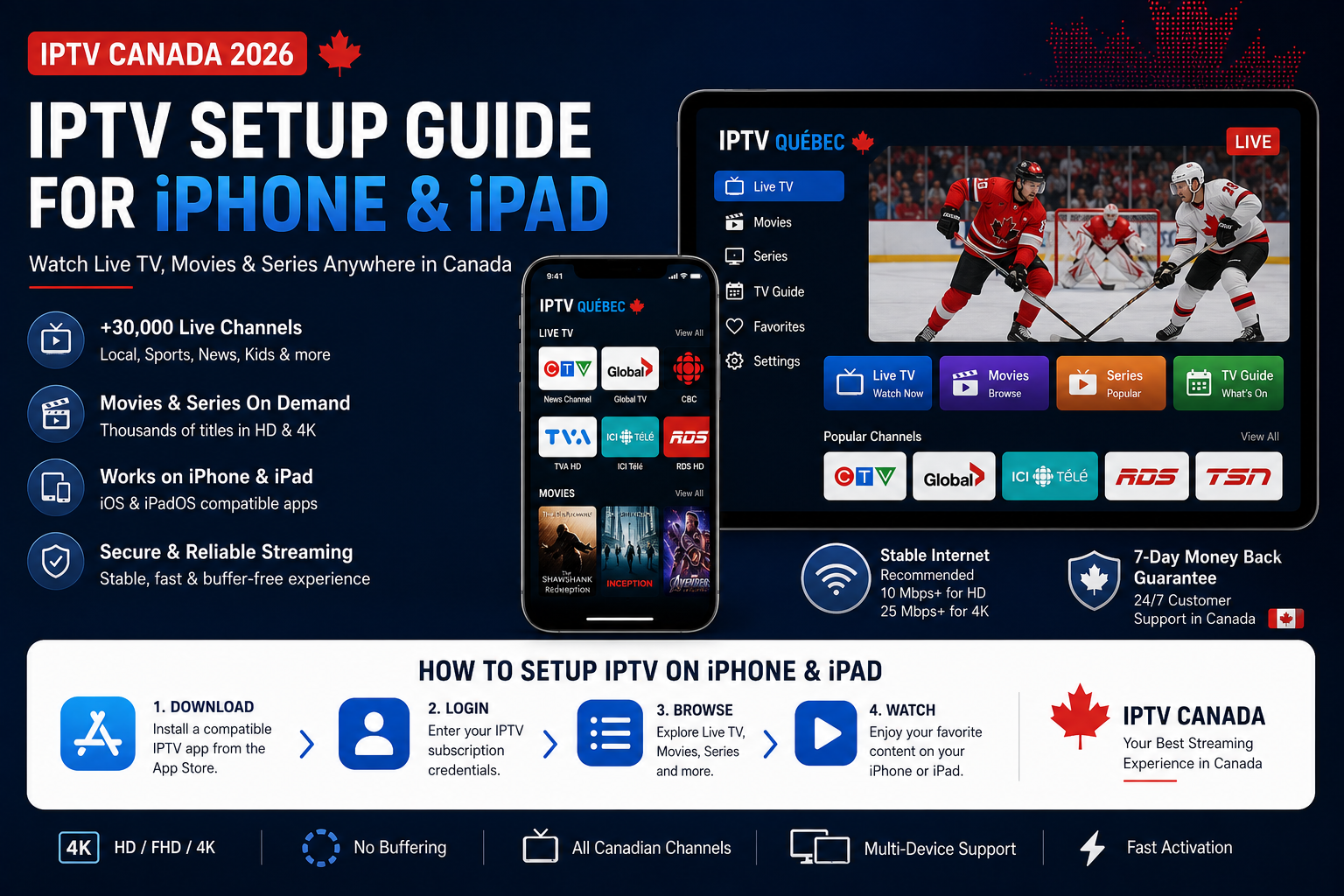
Watching television on a mobile device has become increasingly convenient for Canadians. Whether you are at home, travelling, or simply want to watch content away from your television, an iPhone or iPad can provide an excellent streaming experience.
If you are searching for IPTV Canada, your Apple mobile device can potentially be used with a compatible television or streaming service without purchasing an additional TV box. With the right application, a stable Internet connection, and a legitimate subscription, setup can be straightforward.
In this IPTV Setup Guide for iPhone & iPad, we explain how to install an IPTV-compatible app, configure your service, improve streaming quality, troubleshoot common problems, and choose the right settings for HD and 4K content.
We will also connect this guide with our other tutorials covering Firestick, Samsung Smart TV, LG Smart TV, Android TV, Apple TV, and Windows PC.
Important: IPTV is a technology for delivering television using Internet Protocol. Always use services that are authorized to distribute the channels, movies, series, and other content they offer.
What Do You Need for IPTV Setup Guide for iPhone & iPad ?
Before starting your IPTV Canada setup, prepare a few essential things.
1. A Compatible iPhone or iPad
You need an Apple device capable of running a currently supported version of the application you want to use.
The exact iOS or iPadOS requirement varies from app to app, so always check the compatibility information on the App Store before installation.
2. A Stable Internet Connection
Video streaming requires a reliable Internet connection.
As a practical starting point, consider approximately:
- HD: 10 Mbps or more
- Full HD: 15–25 Mbps or more
- 4K: 25 Mbps or more
These are general guidelines rather than universal requirements. Actual bandwidth depends on compression, bitrate, your provider, and other devices using your network.
3. A Legitimate IPTV or TV Service
You also need an active service authorized to provide the content included with your subscription.
Depending on the provider, you may receive an account, an official app, or another supported configuration method.
4. A Compatible App
Your provider may have its own iPhone or iPad application.
Otherwise, it may recommend a compatible media player available through the App Store.
Whenever possible, install apps through Apple’s official App Store rather than downloading software from unknown websites.
How to Install IPTV on iPhone & iPad
The exact procedure depends on your provider, but the following steps cover the typical installation process.
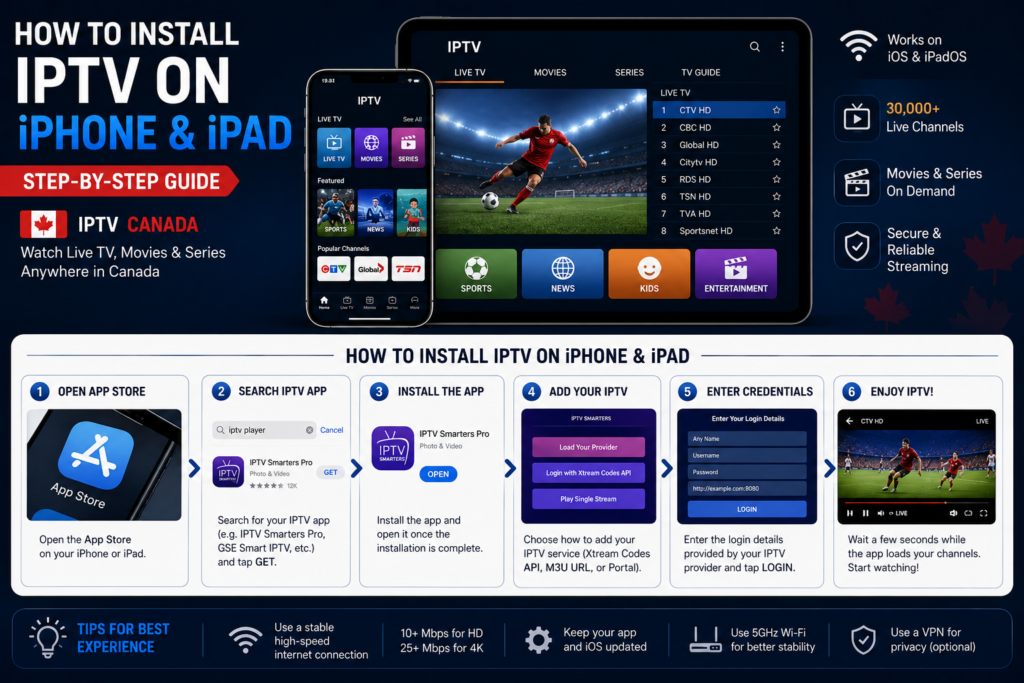
Step 1 – Connect Your Device to the Internet
First, connect your iPhone or iPad to a reliable Wi-Fi network.
Mobile data can also work depending on your carrier and subscription, but remember that video streaming can consume significant amounts of data.
For longer viewing sessions at home, Wi-Fi is usually more practical.
Step 2 – Open the Apple App Store
Open the App Store on your iPhone or iPad.
Use the search function to locate the application officially supported or recommended by your television provider.
Before installing it, check:
- developer name;
- compatibility;
- ratings and reviews;
- privacy information;
- latest update;
- supported devices.
This helps reduce the risk of installing an unofficial imitation.
Step 3 – Install Your IPTV App
Once you have identified the correct application, tap Get.
You may need to confirm the download using Face ID, Touch ID, or your Apple Account credentials.
Wait until installation is complete, then launch the app.
How to Configure IPTV on iPhone & iPad
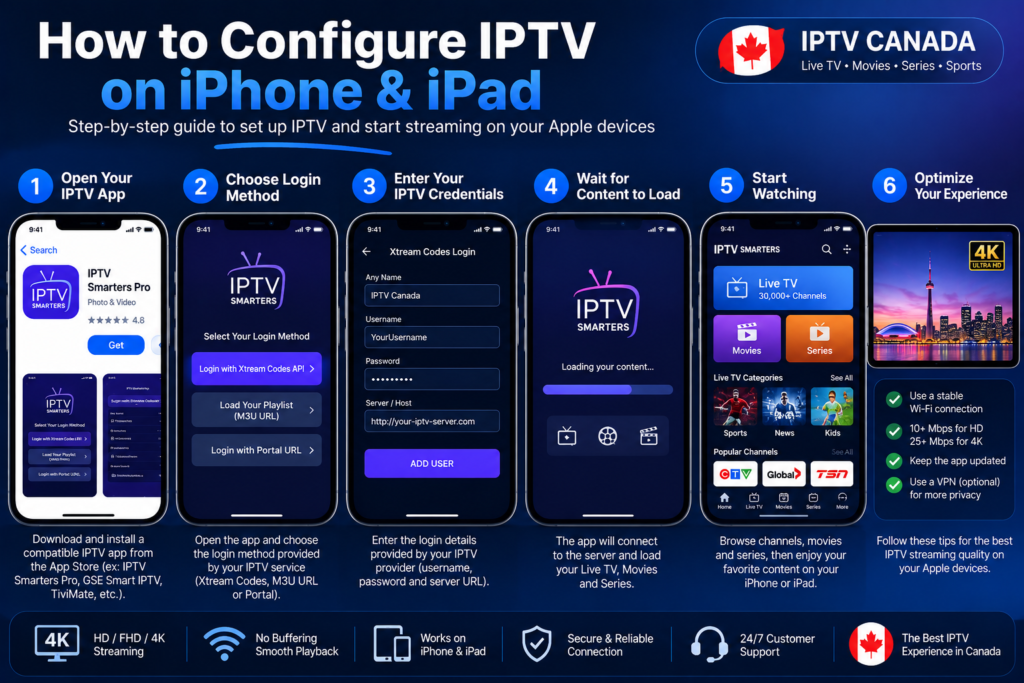
After opening the application, you need to connect it to your service.
The configuration method depends entirely on the provider.
Some services use a normal email address and password.
Others may provide a specific account configuration or playlist supported by the application.
Enter the information exactly as supplied by your legitimate provider.
Avoid publicly sharing login credentials, screenshots containing passwords, or private subscription URLs.
Once authenticated, the application may begin loading the available content.
Depending on your subscription, you might see categories such as:
Live TV – Movies – Series – Favourites – TV Guide – Replay
Give the application enough time to complete its first synchronization.
How to Watch IPTV on iPhone
Once configuration is complete, open the live television section.
Select a channel or program.
The player should begin streaming the selected content through your Internet connection.
If your IPTV Canada provider supports an electronic program guide, you may also see information about the current and upcoming programs.
Adding your most frequently watched channels to favourites can make navigation much easier on the smaller iPhone screen.
How to Watch IPTV on iPad
The setup process on iPad is generally similar.
However, the larger screen makes an iPad particularly convenient for watching television, movies, and sports while travelling or moving around the house.
Some applications also provide interfaces specifically optimized for iPadOS.
If supported by your service and application, you may have access to features such as:
- full-screen playback;
- picture-in-picture;
- favourites;
- EPG;
- subtitles;
- multiple audio tracks;
- replay;
- VOD.
Feature availability depends on the application and provider.
IPTV Canada: Wi-Fi or Mobile Data?
Both options can work, but they have different advantages.
Wi-Fi
For home viewing, Wi-Fi will usually be the preferred option.
A strong modern Wi-Fi connection can comfortably handle HD and Full HD streaming.
If your signal is weak, move closer to your router or access point.
Mobile Data
Streaming through 4G or 5G can be useful while travelling.
However, HD video can consume a considerable amount of data.
If you have a limited Canadian mobile plan, check your data allowance before watching for extended periods.
Reducing video quality can significantly reduce consumption.
How to Improve IPTV Streaming Quality on iPhone & iPad
If your stream freezes or buffers, the provider is not necessarily the cause.
Several elements can influence performance.
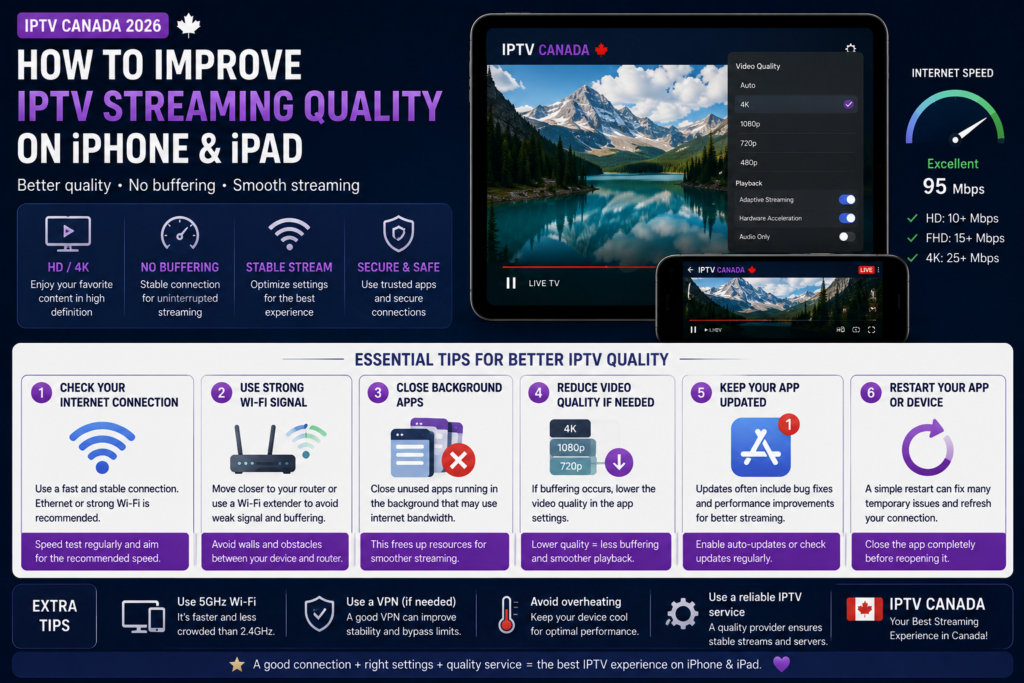
Check Your Internet Connection
Run a speed test and compare the result with the quality you are attempting to stream.
If the connection is unstable, temporarily reduce the video resolution.
Use Strong Wi-Fi
Poor Wi-Fi coverage can cause buffering even when your Internet package provides excellent speeds.
Try moving closer to the router.
Close Heavy Background Activities
Downloads, cloud synchronization, software updates, and other streaming devices can consume bandwidth.
Pause unnecessary network activity while watching IPTV.
Restart the App
Close the player completely and reopen it.
A simple restart can resolve temporary playback issues.
Update iOS or iPadOS
Keeping your device updated can improve application compatibility and security.
Apple provides current instructions for updating iPhone and iPad software through its support documentation.
Update the IPTV Application
Developers regularly release updates to fix bugs and improve compatibility.
Check the App Store for updates if playback problems suddenly appear.
Can You Watch IPTV in 4K on iPhone or iPad?
The answer depends on several factors.
A stream labelled 4K does not automatically mean you will experience true 4K quality.
The complete chain matters:
4K source + authorized provider + sufficient bandwidth + compatible app + compatible device/display.
For smaller iPhone screens, extremely high resolution may also offer less noticeable benefit than it does on a large television.
Higher-resolution streams additionally consume more bandwidth and mobile data.
For many users, a stable Full HD stream can therefore provide a better practical experience than an unstable higher-resolution stream.
Can You Cast IPTV from iPhone or iPad to a TV?
Potentially, yes.
Some applications support Apple’s AirPlay technology, allowing compatible content to be sent to an Apple TV, AirPlay-compatible television, or Mac.
However, compatibility depends on the application and the content.
Apple explains that AirPlay can be used to stream video or mirror an iPhone or iPad screen to compatible devices.
If your IPTV app does not support AirPlay properly, consider installing the service directly on your television or streaming device instead.
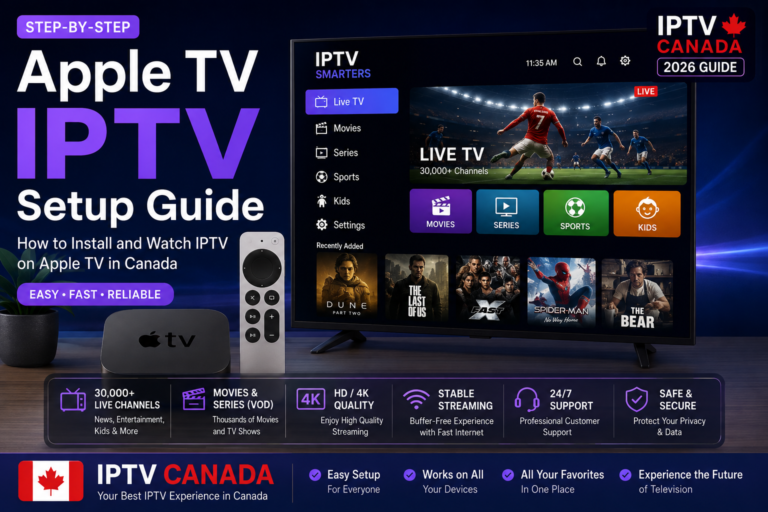
For Apple TV users, read our dedicated Apple TV IPTV Setup Guide.
Common IPTV Problems on iPhone & iPad
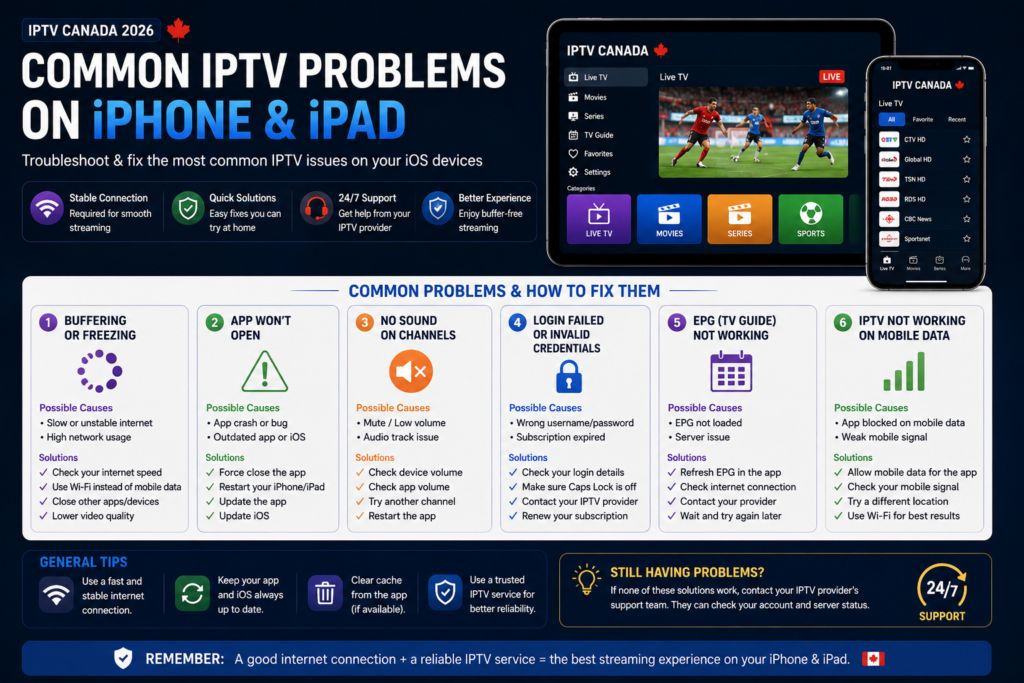
IPTV App Keeps Buffering
Check your Internet speed first.
Then test another stream.
If all channels buffer, your connection or provider may be experiencing a problem.
If only one channel is affected, the issue may be related to that particular stream.
IPTV App Will Not Open
Restart the application.
If the problem continues, restart your iPhone or iPad and check for application and system updates.
You can also check whether the provider is experiencing a service interruption.
No Sound
Verify your device volume and audio output.
If you are connected to Bluetooth headphones or speakers, audio may be routed to another device.
Test another channel to determine whether the issue affects the entire application.
Login Details Do Not Work
Check every character carefully.
Usernames and passwords can be case-sensitive.
If the credentials previously worked but suddenly fail, contact your provider rather than repeatedly changing application settings.
IPTV Works on Wi-Fi but Not Mobile Data
Check whether mobile data is enabled for the application in your iPhone settings.
Your provider, app, mobile carrier, or network configuration may also affect access.
IPTV on iPhone vs iPad: Which Is Better?
Both devices can provide a good experience.
The iPhone wins for portability. It is ideal for quickly checking a program when you are away from a television.
The iPad provides a larger display and is generally more comfortable for long movies, television shows, and sports.
For home entertainment, however, a large television will usually provide a more immersive experience.
That is why it can be useful to combine mobile IPTV with another device at home.
Is IPTV Legal in Canada?
The underlying IPTV technology is legitimate.
Canadian telecommunications and broadcasting companies use IP-based systems to distribute television services.
The important distinction is the content itself.
A provider must have the necessary rights and authorization to distribute copyrighted channels, films, series, and sporting events.
Therefore, when searching for an IPTV service Canada, do not evaluate providers purely by the number of channels or an unusually low price.
Consider:
- provider transparency;
- content rights;
- application security;
- customer support;
- terms of service;
- privacy;
- billing transparency.
A legitimate service should clearly explain what you are purchasing.
Best Device for IPTV in Canada
An iPhone or iPad is only one option.
The best device depends on where and how you watch television.
For example, a Smart TV may be ideal for the living room, while a Fire TV or Android TV device can add streaming capabilities to another television.
A Windows computer can be useful at a desk, while an iPad is particularly convenient for portability.
For a complete comparison, read our guide:
👉 Best IPTV Devices for Canadian Homes
More IPTV Canada Installation Guides
Building an internal-link structure between your tutorials can help visitors find the right installation guide while strengthening the topical organization of your website.
After this article, link naturally to these related guides:
How to Install IPTV on Amazon Firestick
Learn how to prepare a Fire TV device, install a compatible application and optimize streaming performance.
How to Watch IPTV on Samsung Smart TV
A step-by-step tutorial for Samsung users, including app installation, Internet requirements and troubleshooting.
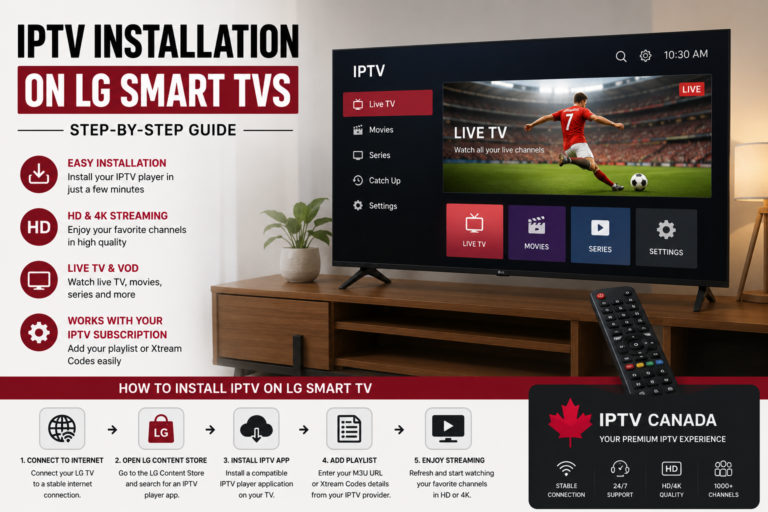
IPTV Installation Guide for LG Smart TVs
Learn how to configure a compatible IPTV service on an LG television and improve playback quality.
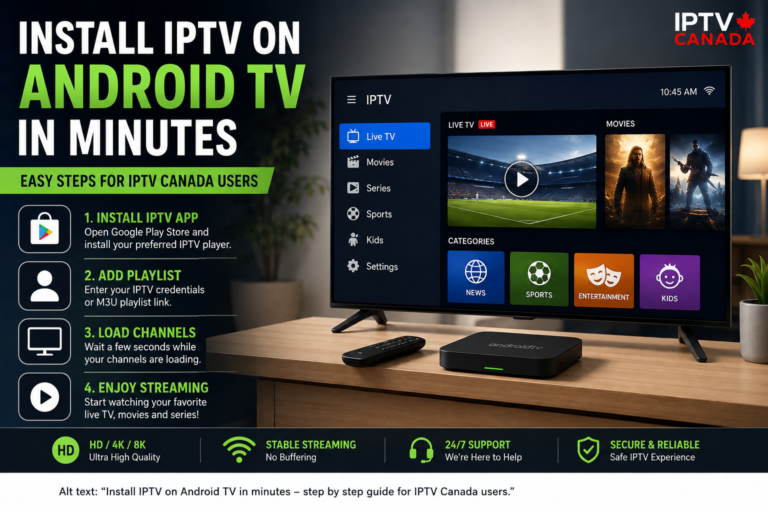
Install IPTV on Android TV in Minutes
A beginner-friendly tutorial covering Android TV installation and configuration.
Apple TV IPTV Setup Guide
Discover how to configure an IPTV-compatible service on Apple TV and optimize the viewing experience.
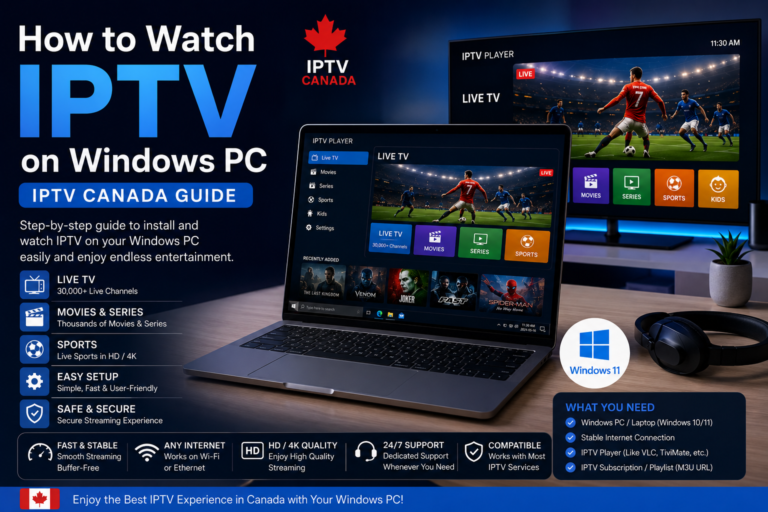
How to Watch IPTV on Windows PC
Learn how to watch authorized IPTV streams from a Windows desktop or laptop and troubleshoot common problems.
These articles create a strong IPTV Canada content cluster around your device-installation topic.
FAQ – IPTV Setup for iPhone & iPad
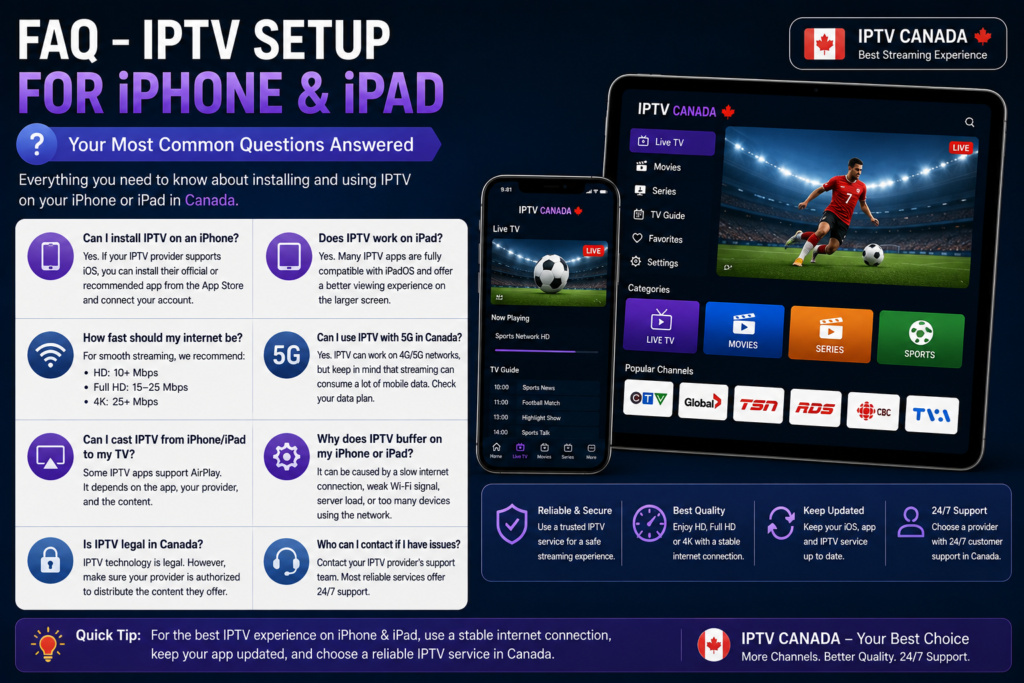
Can I install IPTV on an iPhone?
Yes. If your provider supports iOS, you can install its official or recommended compatible application and connect your account.
Does IPTV work on iPad?
Yes. Many streaming applications support iPadOS, and the larger display makes an iPad particularly suitable for video.
How fast should my Internet be?
As a general guideline, around 10 Mbps can be sufficient for many HD streams, while Full HD and 4K may require substantially more bandwidth.
Can I use IPTV with 5G in Canada?
Yes, technically, provided your app and service work over mobile networks. However, streaming can consume large amounts of mobile data.
Can I send IPTV from iPhone to Apple TV?
Some applications support AirPlay. Availability depends on the app, provider, and content.
Why does IPTV buffer on my iPad?
Possible causes include weak Wi-Fi, insufficient bandwidth, background downloads, application problems, or issues with the provider’s stream.
Conclusion: IPTV Setup on iPhone & iPad in Canada
Setting up IPTV on iPhone or iPad can be straightforward: connect to the Internet, download the appropriate application from the App Store, sign in using the information supplied by your legitimate provider, and test your streams.
For the best IPTV Canada experience, prioritize a reliable Internet connection, keep your device and applications updated, and choose a transparent provider authorized to distribute its content.
An iPhone is excellent for portability, while an iPad offers a larger and more comfortable viewing experience. And when you want to move to the big screen, your IPTV content cluster can guide readers toward Samsung, LG, Android TV, Firestick, Apple TV, or Windows.