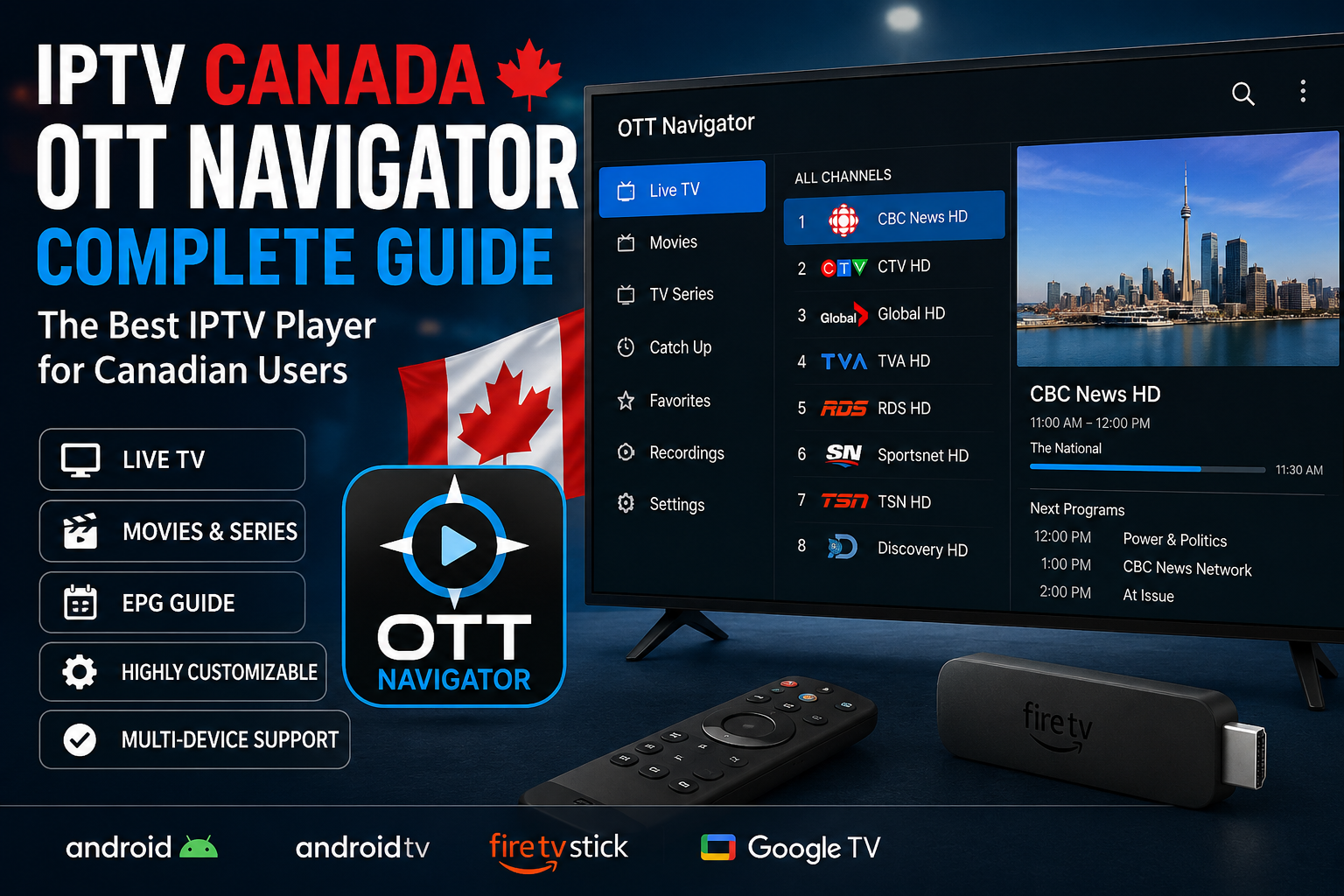
If you’re looking for one of the most customizable IPTV players available, OTT Navigator canada is an excellent choice. Whether you want to watch live TV, movies, or series, this application offers advanced features that go far beyond a standard media player.
For users searching for the best IPTV Canada experience, OTT Navigator provides an intuitive interface, excellent playlist management, and powerful customization options. It supports Xtream Codes, M3U playlists, EPG guides, catch-up TV, and many advanced playback settings.
Unlike many IPTV players, OTT Navigator focuses on giving users complete control over how their content is displayed. You can organize channels, create favorites, customize the interface, and optimize video playback according to your device.
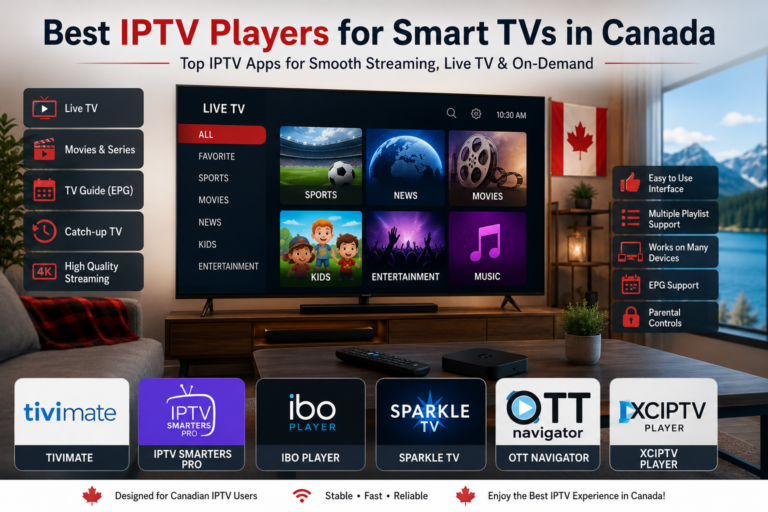
If you’re still comparing IPTV players, you may also want to read our Best IPTV Apps for Canada in 2026, where we compare the most popular IPTV applications available for Canadian users.
What Is OTT Navigator canada?
OTT Navigator is an IPTV player designed for Android devices, Android TV, Google TV, Fire TV Stick, tablets, and smartphones. The application itself does not provide television channels. Instead, it acts as a player that allows you to access IPTV services using your subscription credentials.
Supported login methods include:
- Xtream Codes API
- M3U Playlist URL
- Local Playlist Files
- EPG XML Guides
Because of its flexibility, many IPTV Canada users choose OTT Navigator when they want more control than traditional IPTV applications provide.
Main Features
OTT Navigator includes numerous premium features, including:
- Live TV support
- Video on Demand (VOD)
- TV Series library
- Electronic Program Guide (EPG)
- Catch-Up TV
- Favorites
- Multiple playlists
- Picture-in-Picture mode
- Advanced channel filtering
- Subtitle support
- Audio track selection
- Multi-screen support
- Playback history
- Automatic channel grouping
These features make it one of the most complete IPTV players currently available.
Why Canadian Users Choose OTT Navigator
Many IPTV users in Canada prefer OTT Navigator because it combines performance with flexibility.
Some of the main reasons include:
| Feature | Benefit |
|---|---|
| Fast interface | Smooth navigation even with large playlists |
| Excellent EPG | Easy program browsing |
| Xtream Codes support | Quick IPTV setup |
| Multiple playlists | Manage different IPTV subscriptions |
| Advanced customization | Personalize the interface |
| Stable playback | Excellent streaming performance |
If you’re new to IPTV, you may also find our IPTV Smarters Pro Setup Guide for Canadian Users useful before deciding which player best suits your needs.
Supported Devices
OTT Navigator works on many devices, including:
- Android Smartphones
- Android Tablets
- Android TV
- Google TV
- Amazon Fire TV Stick
- Fire TV Cube
- NVIDIA Shield TV
- Chromecast with Google TV
- TV Boxes
- Windows (Android Emulator)
Because of this wide compatibility, OTT Navigator is becoming increasingly popular among IPTV Canada users who want a flexible streaming solution.
Why OTT Navigator Is Different From Other IPTV Players
Unlike simpler IPTV applications, OTT Navigator focuses on advanced personalization.
Some standout features include:
- Fully customizable home screen
- Smart channel grouping
- Automatic content organization
- Multiple viewing layouts
- Detailed playback controls
- Powerful search function
- Advanced filtering options
- Highly responsive interface
These features make OTT Navigator an excellent choice for experienced IPTV users who want complete control over their viewing experience.
How to Install OTT Navigator for IPTV Canada
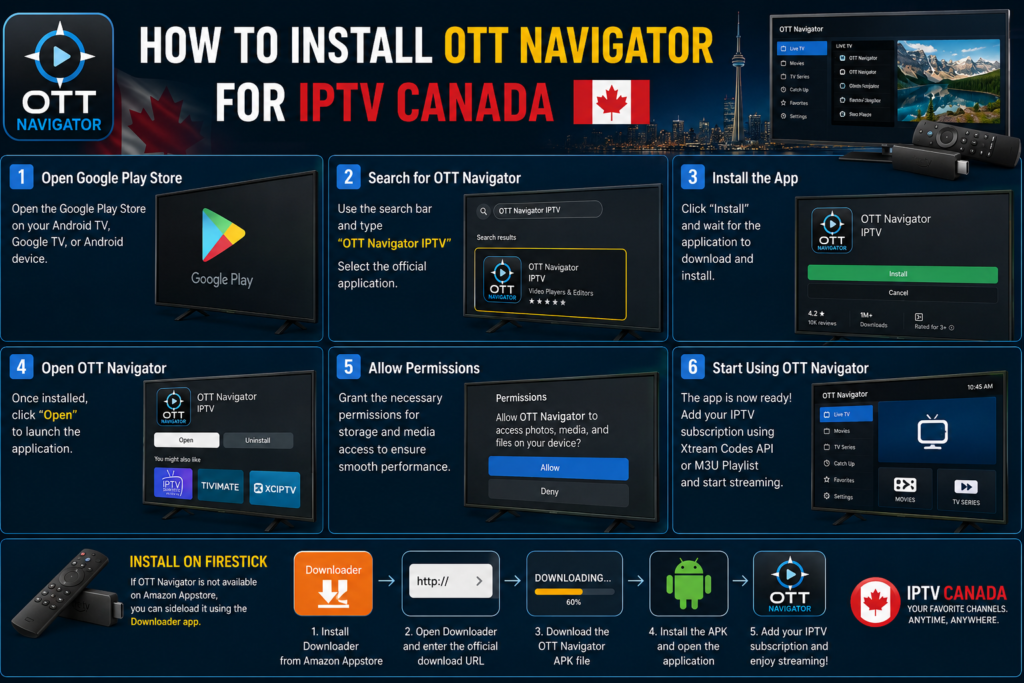
Installing OTT Navigator is quick and straightforward. Whether you’re using an Android smartphone, Android TV, Google TV, or an Amazon Fire TV Stick, the process only takes a few minutes.
Step 1: Install OTT Navigator
Open the Google Play Store on your Android device and search for OTT Navigator IPTV. Download and install the application.
If you’re using a Fire TV Stick, you’ll need to sideload the application since it isn’t available directly through the Amazon Appstore.
Once installed, launch the application.
How to Add Your IPTV Subscription
After opening OTT Navigator for the first time, you’ll be asked to add an IPTV source.
The application supports several login methods.
Option 1: Xtream Codes API (Recommended)
Enter:
- Server URL
- Username
- Password
This is the easiest setup method and automatically imports Live TV, Movies, TV Series, and the EPG.
Option 2: M3U Playlist
If your IPTV provider supplies an M3U URL, simply paste it into OTT Navigator.
The application will automatically scan your playlist and organize the available channels.
Option 3: Local Playlist
You can also import an M3U file stored directly on your device.
For most IPTV Canada users, Xtream Codes is the preferred option because it offers better organization and automatic updates.
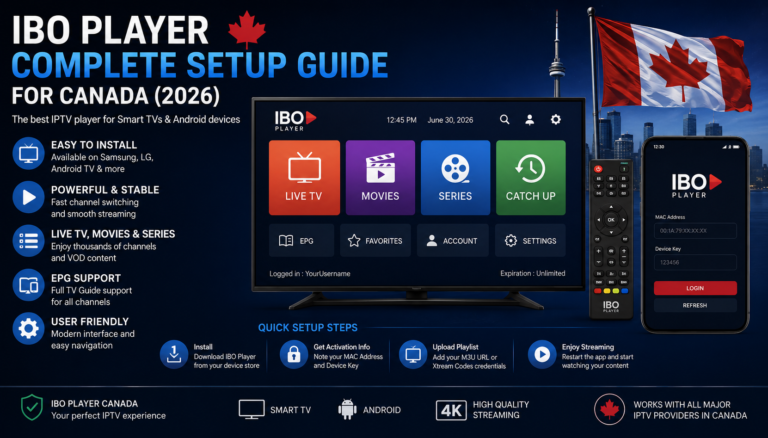
If you need help with IPTV credentials, our IBO Player Complete Setup Guide explains the different login methods in greater detail.
Best OTT Navigator Settings
After importing your IPTV subscription, spend a few minutes optimizing the player for smoother streaming.
Enable Hardware Acceleration
This reduces CPU usage and improves playback quality, especially for HD and 4K channels.
Activate Automatic Frame Rate
This provides smoother video playback on compatible televisions.
Configure Buffer Size
If your internet connection occasionally fluctuates, increasing the playback buffer may reduce interruptions.
Enable EPG Updates
Keeping the Electronic Program Guide updated ensures accurate schedules and channel information.
Organize Favorites
Create a favorites list containing your most-watched channels for quicker navigation.
Hide Unused Categories
Removing categories you never use keeps the interface cleaner and easier to browse.
Advanced Features
One of the biggest advantages of OTT Navigator is its extensive customization.
Popular features include:
- Multiple playlists
- Picture-in-Picture mode
- Custom channel groups
- Recently watched channels
- Automatic sorting
- Recording support (device dependent)
- Playback resume
- Multiple audio tracks
- Subtitle management
- Channel search filters
These options make the application especially attractive for experienced IPTV Canada users.
Common OTT Navigator Problems and Solutions
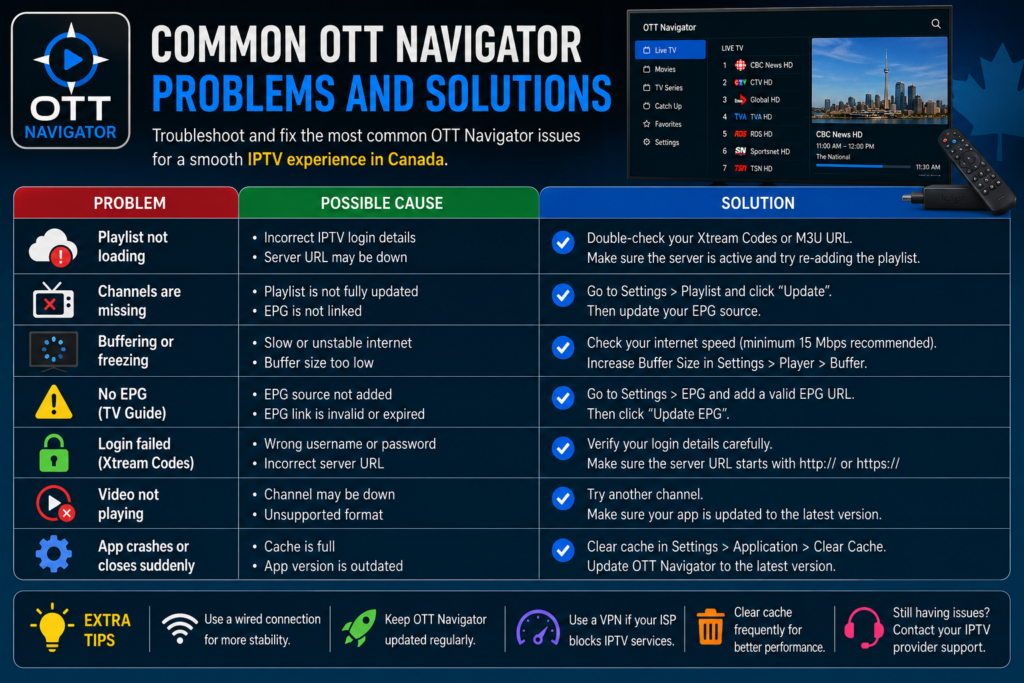
Even though OTT Navigator is stable, users may occasionally experience issues.
| Problem | Solution |
|---|---|
| Playlist not loading | Verify your Xtream Codes or M3U URL. |
| Missing channels | Refresh the playlist from Settings. |
| No EPG | Update the EPG source manually. |
| Buffering | Check your internet connection and adjust buffer settings. |
| Login failed | Double-check your username, password, and server URL. |
| App crashes | Update the application or clear the app cache. |
Most problems can be resolved within a few minutes without reinstalling the application.
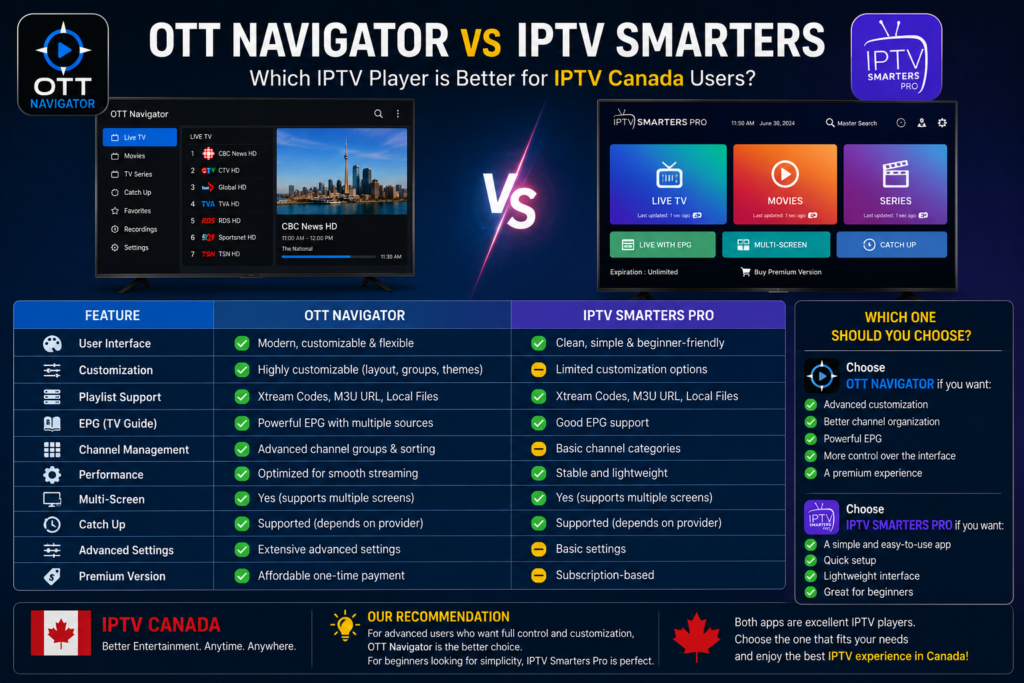
OTT Navigator vs IPTV Smarters
Both applications are excellent IPTV players, but they serve different types of users.
| Feature | OTT Navigator | IPTV Smarters |
|---|---|---|
| Interface | Highly customizable | Beginner-friendly |
| Xtream Codes | ✔ | ✔ |
| M3U Support | ✔ | ✔ |
| Custom Layouts | ✔ | Limited |
| Ease of Use | Medium | Very Easy |
| Advanced Settings | Excellent | Basic |
If you’re looking for simplicity, read our IPTV Smarters Pro Setup Guide for Canadian Users.
If you prefer advanced customization and greater control, OTT Navigator is usually the better choice.
OTT Navigator vs TiviMate
TiviMate is another popular IPTV application among Canadian users.
| Feature | OTT Navigator | TiviMate |
|---|---|---|
| Customization | Excellent | Very Good |
| Interface | Flexible | Premium Design |
| Playlist Management | Excellent | Excellent |
| EPG | Excellent | Excellent |
| Learning Curve | Moderate | Easy |
If you’re unsure which application to choose, don’t miss our TiviMate Review: Is It the Best IPTV Player in Canada?
Related IPTV Guides
To get the most from your IPTV Canada setup, you may also find these guides helpful:
- Best IPTV Apps for Canada in 2026 – Compare the most popular IPTV players and choose the right one for your needs.
- IPTV Smarters Pro Setup Guide for Canadian Users – Learn how to install and configure IPTV Smarters.
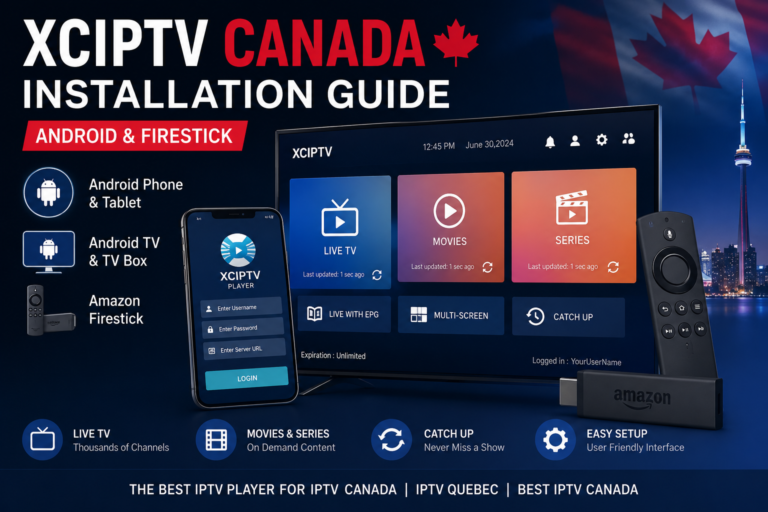
- XCIPTV Installation Guide for Android & Firestick – A complete installation tutorial for XCIPTV.
- IBO Player Complete Setup Guide – Discover how to configure IBO Player step by step.
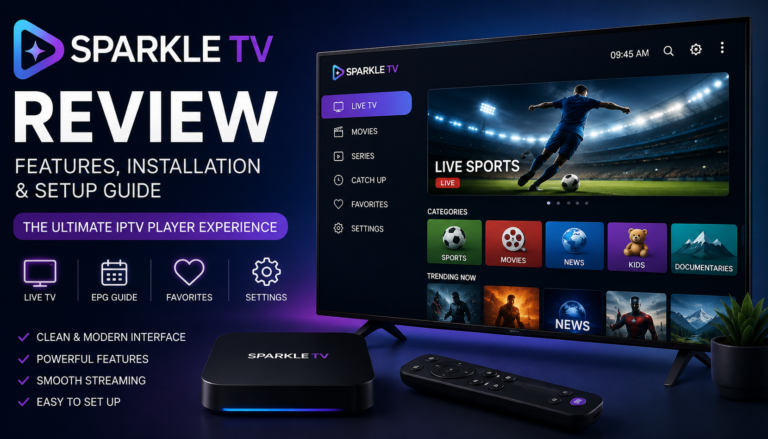
- Sparkle TV Review: Features, Installation & Setup – Explore Sparkle TV’s features and setup process.