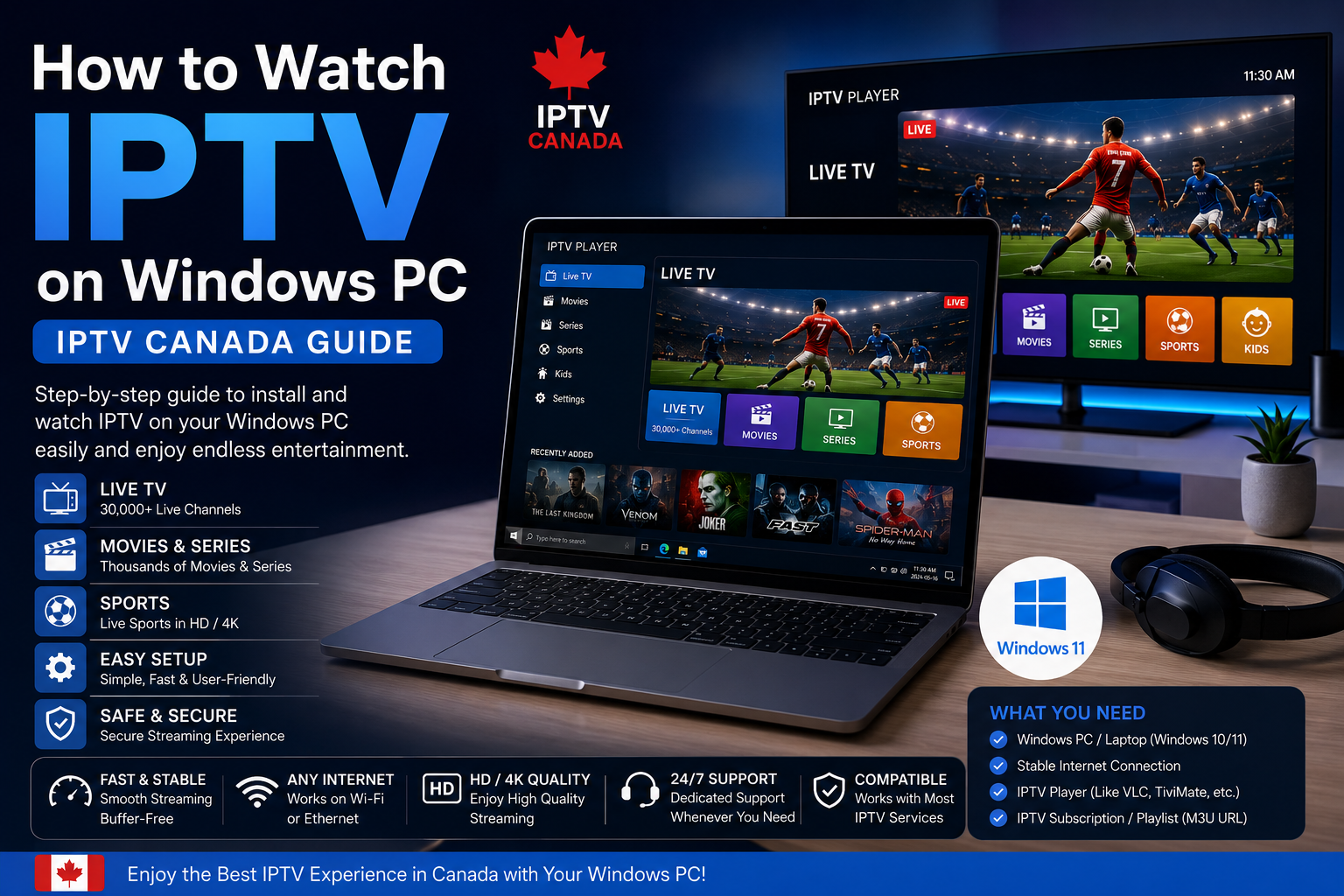
Watching IPTV on a Windows PC can be a convenient way to enjoy live television, movies, series and other online content without depending on a traditional cable setup. For Canadian users searching for IPTV Canada, a Windows computer can be an excellent option because you can use a compatible IPTV application or player directly on your PC.
Whether you are using a desktop computer or laptop, the basic setup is relatively simple. You need a stable Internet connection, a compatible IPTV player and the login information or playlist provided by your IPTV service.
In this guide, we explain how to watch IPTV on Windows PC, how to configure your IPTV player and how to solve some of the most common streaming problems.
Important: IPTV is a technology for delivering television content over the Internet. Always use IPTV services and content that you are legally authorized to access.
What Is IPTV on Windows PC?
IPTV stands for Internet Protocol Television. Instead of receiving television channels through traditional cable or satellite systems, IPTV delivers video content through an Internet connection.
On Windows, IPTV can be accessed through compatible media players or dedicated IPTV applications.
The IPTV player generally acts as the interface between your computer and the playlist or account supplied by your IPTV provider.
Depending on the application, you may be able to access:
- Live TV
- Movies
- TV series
- Sports
- News
- International channels
- Electronic Program Guide (EPG)
The exact content depends on your IPTV service and the rights associated with the content.
Why Use a Windows PC for IPTV Canada?
There are several advantages to watching IPTV on a Windows computer.
Easy Setup
Most Windows computers already have everything needed to connect to the Internet and install compatible software.
Large Screen Support
You can connect your PC to a larger monitor or television using HDMI, allowing you to use your computer as an entertainment system.
Flexible Applications
Windows supports many media players and streaming applications, giving users flexibility when choosing a compatible IPTV player.
Convenient for Work and Entertainment
A laptop can be particularly useful if you want to watch IPTV while traveling or in different rooms of your home, provided that you have a reliable Internet connection and are permitted to access the service.
What You Need Before Installing IPTV on Windows
Before starting your IPTV setup, prepare the following:
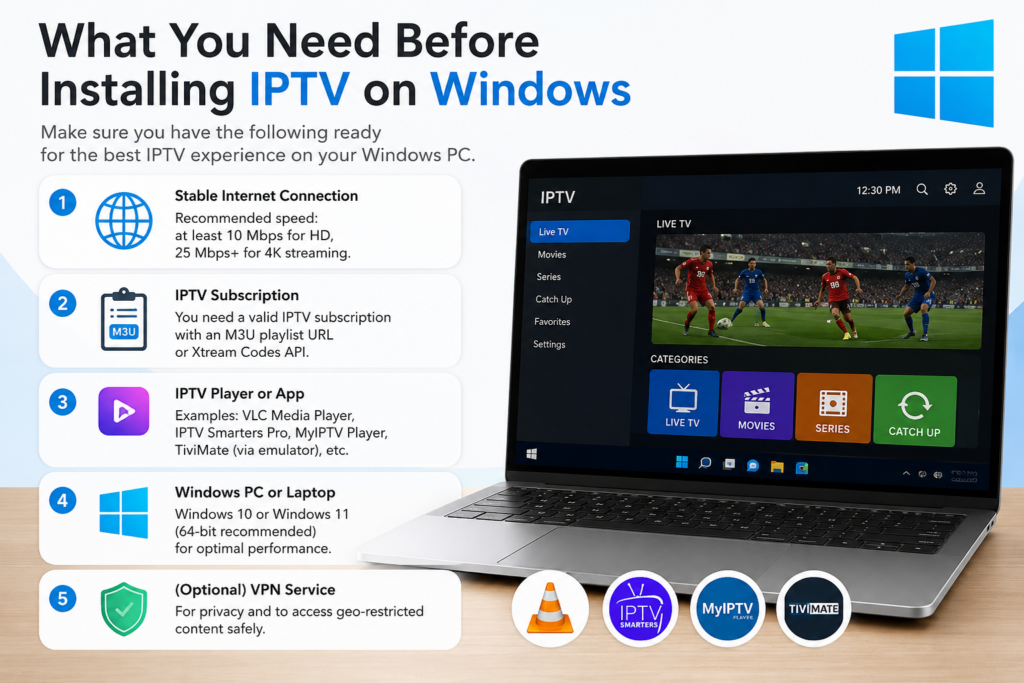
- Windows PC or laptop
- Stable Internet connection
- Compatible IPTV player
- IPTV account or playlist
- Username and password, if required
- M3U URL or server information, if provided
- EPG URL, if supported
The exact information required depends on your IPTV service and the application you choose.
Step 1: Connect Your Windows PC to the Internet
The first step is making sure your computer has a stable Internet connection.
You can connect through Wi-Fi or Ethernet.
If your computer is close to the router, Ethernet is often a good option for consistent performance. If you use Wi-Fi, make sure the signal is strong enough for streaming.
Before installing IPTV, test another streaming website or application to verify that your connection works correctly.
Step 2: Choose a Compatible IPTV Player
Windows supports several types of IPTV players.
The right application depends on the format provided by your IPTV service.
For example, some players support M3U playlists, while others may support username-and-password authentication or other IPTV formats.
Before installing an application, check that it supports your IPTV provider’s connection method.
Avoid downloading software from unknown or suspicious websites. Use trusted sources and keep your Windows security software active.
Step 3: Install the IPTV Player
Download and install a compatible IPTV player from a trusted source.
Follow the installation instructions provided by the software.
Once the installation is complete, open the application.
You may see options such as:
- Add Playlist
- Add M3U URL
- Login
- Xtream Codes
- Portal
- EPG
Choose the option that matches the information supplied by your IPTV provider.
Step 4: Add Your IPTV Subscription
Now you can connect your IPTV service to the player.
If your provider gives you an M3U playlist, select the playlist option and enter the URL.
If your provider uses username and password authentication, enter the credentials exactly as supplied.
For example:
Username: Your IPTV username
Password: Your IPTV password
Server URL: The server address supplied by your provider
Be careful when entering the information.
A single incorrect character can prevent the application from connecting to the IPTV service.
Step 5: Load Your IPTV Channels
After entering your information, save the configuration.
The IPTV player should connect to your service and load the available content.
Depending on the application, you may see categories such as Live TV, Movies, Series and Sports.
You can usually browse categories and create a list of favorite channels for faster access.
Some IPTV applications also provide search functions, making it easier to find specific channels or programs.
Step 6: Configure the EPG
The Electronic Program Guide, commonly called EPG, can display television schedules and program information.
If your IPTV provider supplies an EPG URL, add it to the IPTV player if the application supports this feature.
A properly configured EPG makes it easier to see what is currently playing and what programs are coming next.
If the guide does not appear, verify the EPG URL and check that the IPTV player supports the format supplied by your provider.
How to Improve IPTV Streaming Quality on Windows
A good IPTV experience depends heavily on your Internet connection and computer performance.
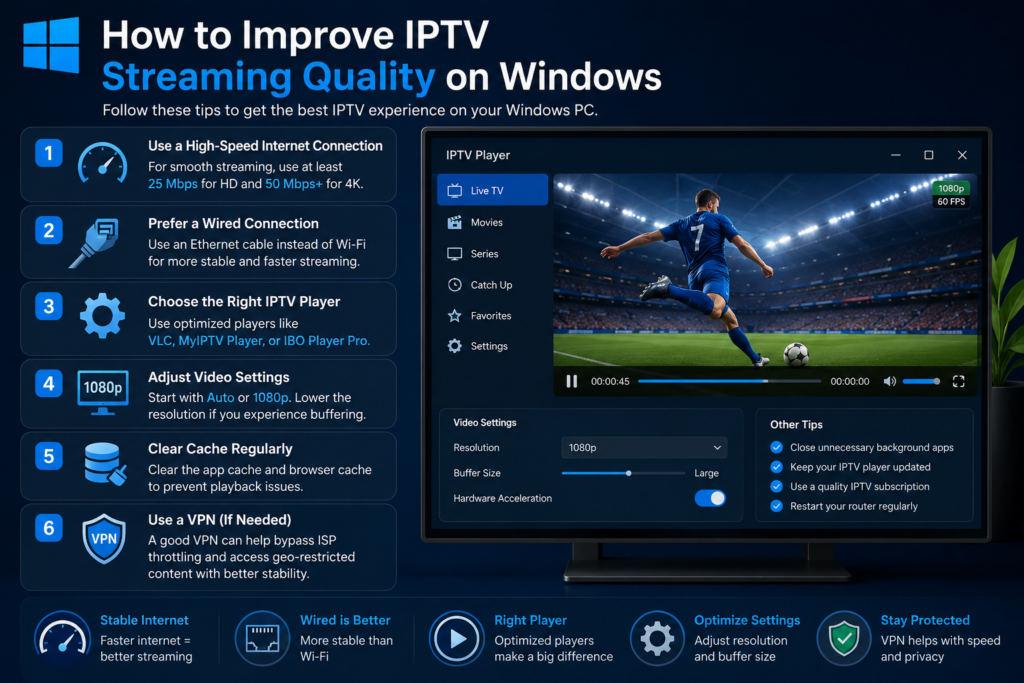
Use Ethernet When Possible
A wired Ethernet connection can provide more consistent performance than Wi-Fi.
If you experience frequent buffering on Wi-Fi, try connecting your Windows PC directly to your router.
Reduce Network Congestion
Other devices connected to your network can consume bandwidth.
Large downloads, cloud backups, online gaming and multiple video streams can reduce available bandwidth.
Try limiting unnecessary network activity while watching IPTV.
Close Unnecessary Applications
If your computer has limited resources, close applications that are not needed.
Browsers with many open tabs, games and resource-intensive software can affect overall system performance.
Keep Windows Updated
Make sure Windows and your IPTV application are kept updated.
Software updates can improve stability, compatibility and security.
Common IPTV Problems on Windows PC
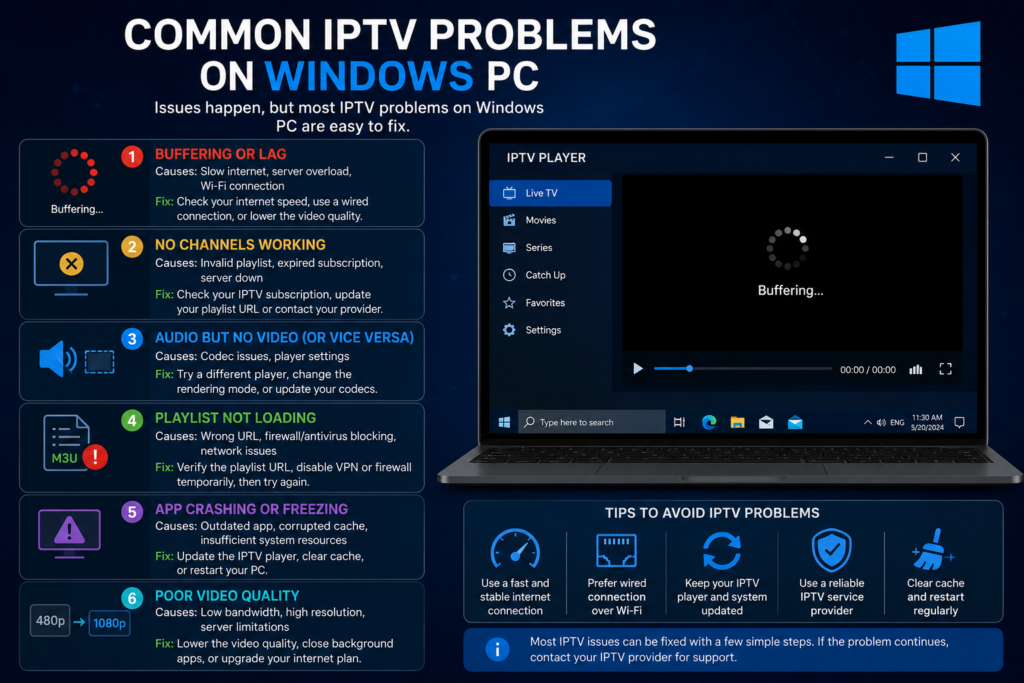
IPTV Keeps Buffering
Buffering can be caused by an unstable Internet connection, network congestion, application problems or issues affecting the IPTV service.
Try restarting your router and IPTV player.
If possible, switch from Wi-Fi to Ethernet.
IPTV Channels Are Not Loading
First, check your IPTV login information.
Make sure your username, password and server URL are correct.
If your credentials are correct but channels still do not load, contact your IPTV provider.
IPTV Player Crashes
If your IPTV application repeatedly crashes, restart your computer and check for application updates.
You can also reinstall the application if the problem continues.
Make sure that your Windows version meets the application’s requirements.
No EPG Information
If channels work but the TV guide is empty, verify your EPG settings.
The EPG URL may be incorrect, expired or unsupported by the application.
Can You Connect a Windows PC to a TV?
Yes. One of the advantages of watching IPTV on Windows is that you can connect your computer to a larger television or monitor.
An HDMI connection can allow your television to act as the display for your Windows PC.
This can be useful if you want to watch IPTV on a large screen while keeping the flexibility of a computer-based setup.
Make sure your PC and television support the required display connection and resolution.
Windows PC vs Other IPTV Devices
Windows is only one option for IPTV users in Canada.
If you prefer watching IPTV directly on your television, there are several other platforms to consider.
Our guide Best IPTV Devices for Canadian Homes compares popular options such as Android TV, Firestick, Samsung Smart TV, LG Smart TV and Android TV boxes.
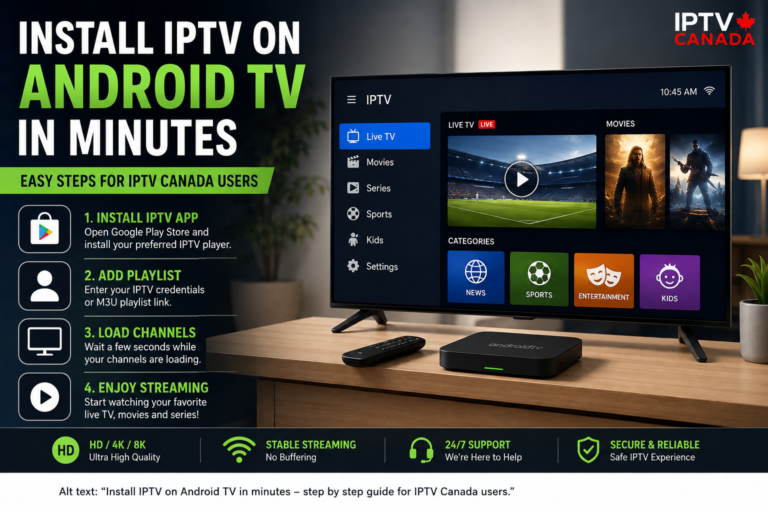
If you prefer Android TV, check:
Install IPTV on Android TV in Minutes
For Amazon users, see:
How to Install IPTV on Amazon Firestick
Samsung television owners can read:
How to Watch IPTV on Samsung Smart TV
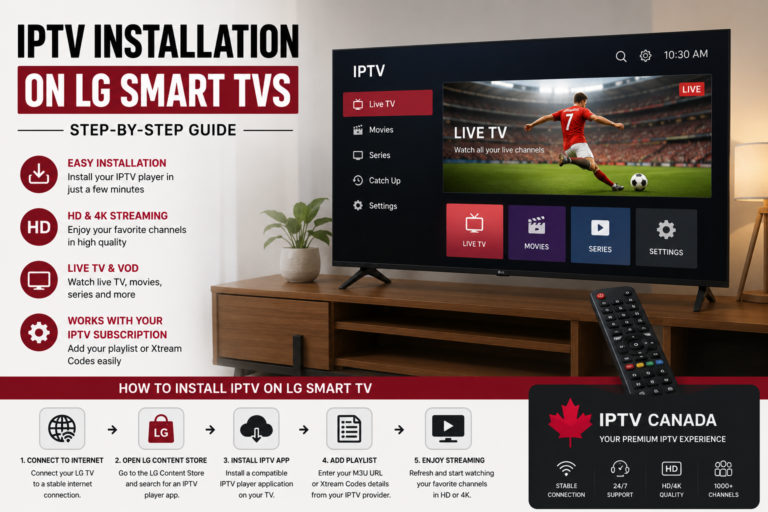
LG users can follow:
IPTV Installation Guide for LG Smart TVs
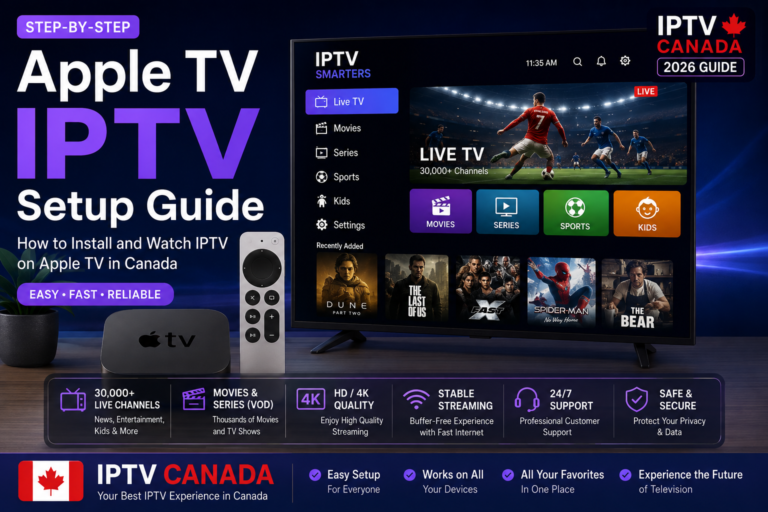
And if you use Apple’s streaming platform, check:
These guides create a complete IPTV installation resource for Canadian users across multiple devices.
Is Windows PC Good for IPTV Canada?
For many users, Windows PC is a flexible IPTV solution.
It is especially useful if you already have a laptop or desktop computer and do not want to purchase another streaming device.
Windows also provides flexibility when choosing compatible IPTV software and allows you to connect your computer to a larger television.
However, the quality of your experience depends on your Internet connection, computer performance, IPTV application and service.
Final Thoughts : how to watch IPTV on Windows PC
Learning how to watch IPTV on Windows PC is relatively simple when you have a compatible IPTV player and the correct account information.
The basic process involves connecting your computer to a stable Internet connection, installing a compatible IPTV player, adding your IPTV credentials or playlist and configuring the EPG if available.
For IPTV Canada Subsription users, Windows provides a flexible alternative to Smart TVs and dedicated streaming devices.
If you prefer watching IPTV directly on your television, you can explore our guides for Android TV, Amazon Firestick, Samsung Smart TV, LG Smart TVs and Apple TV.
Whatever device you choose, always use IPTV services and content that you are legally authorized to access, and prioritize a stable Internet connection for the best possible streaming experience.