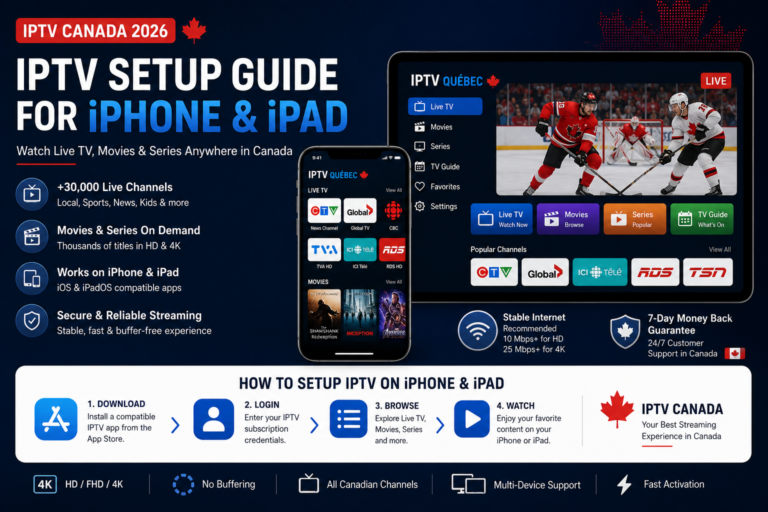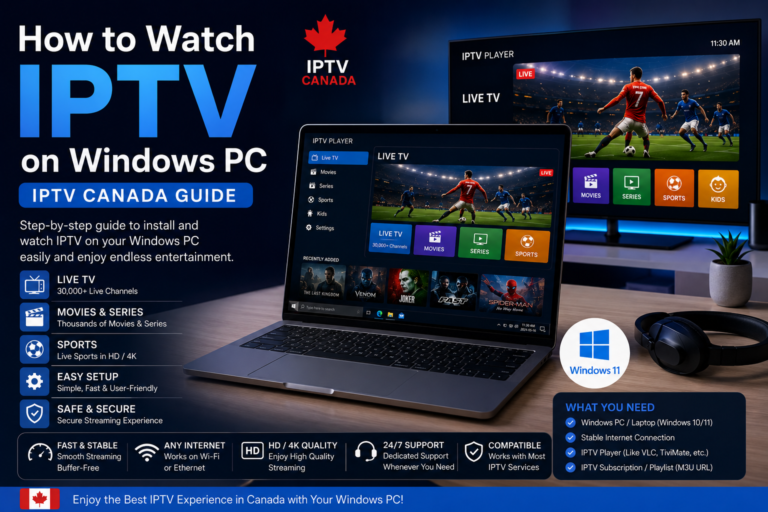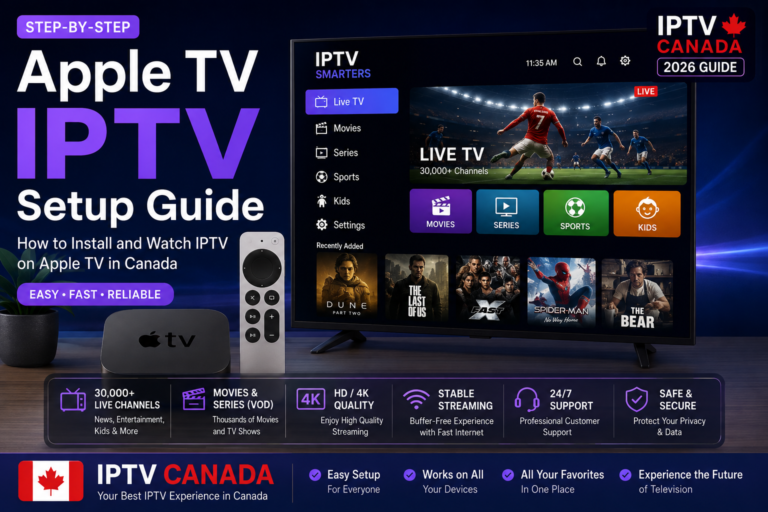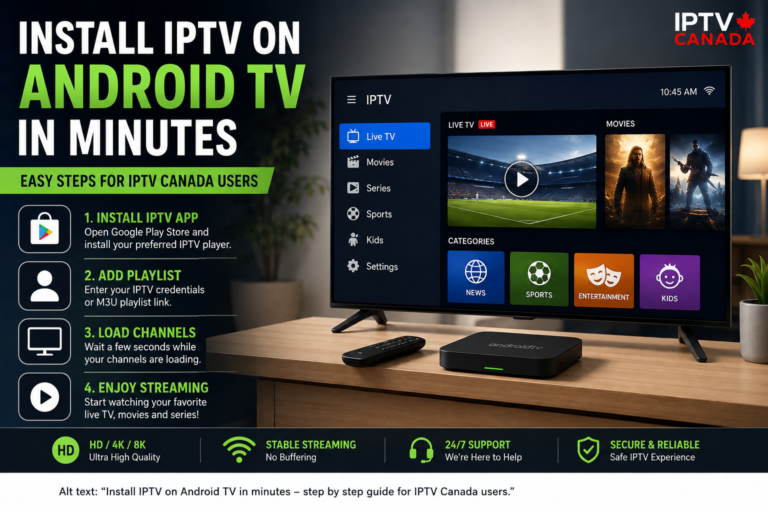
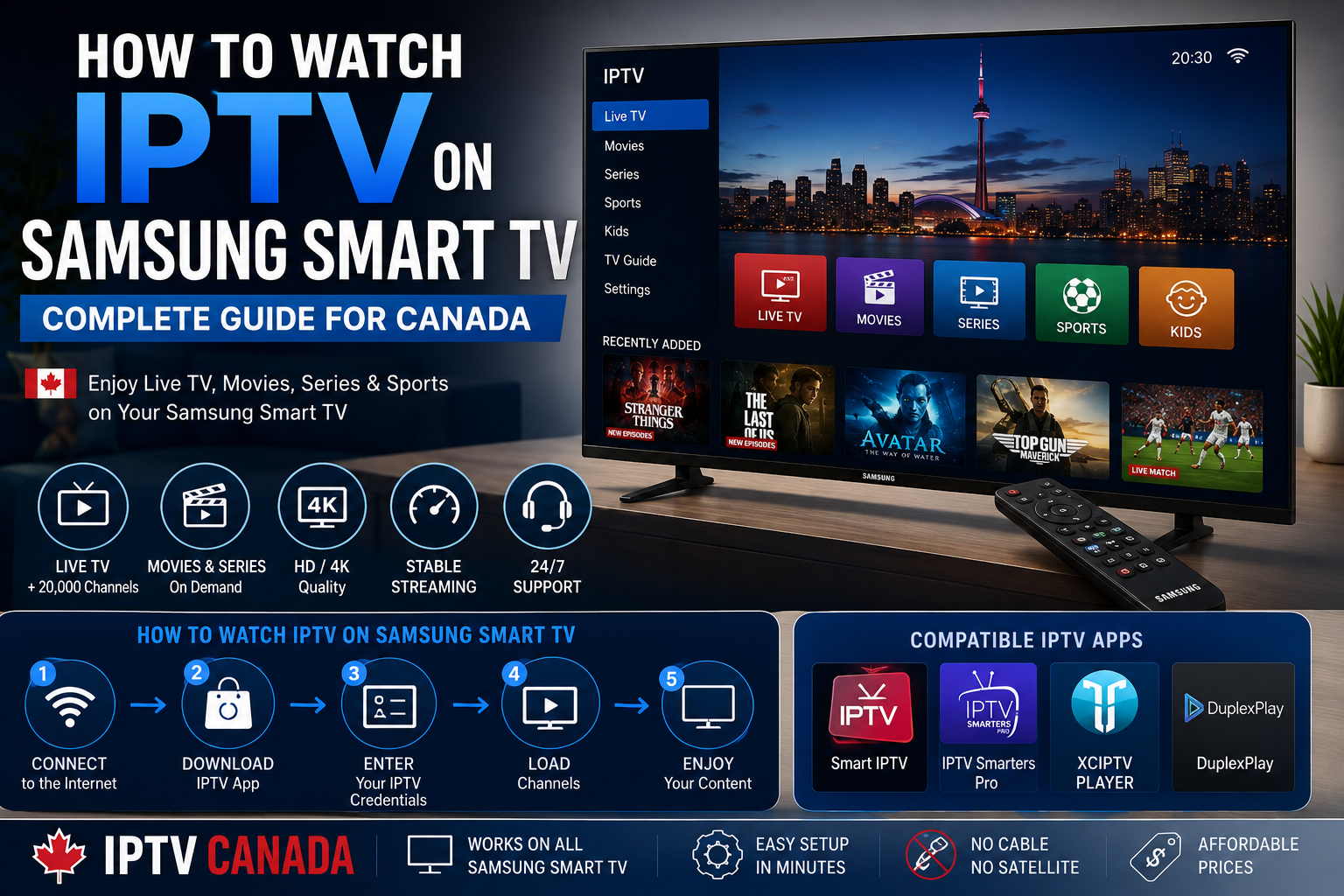
Watching television has changed significantly in Canada. Instead of relying only on traditional cable or satellite services, many viewers are now choosing Internet-based streaming solutions that offer more flexibility and device compatibility.
If you own a Samsung Smart TV and are wondering how to watch IPTV on Samsung Smart TV, the setup can be relatively simple. With the right IPTV player, a stable Internet connection, and a compatible IPTV subscription, you can access live television, movies, series, sports, and on-demand content directly from your TV.
In this complete guide, we explain how IPTV Canada works, how to install an IPTV application on a Samsung Smart TV, what you need before getting started, and how to improve your streaming experience in Canada.
What Is IPTV?
IPTV stands for Internet Protocol Television. Unlike traditional television, which relies on cable, satellite, or terrestrial broadcasting, IPTV delivers television content through an Internet connection.
An IPTV Canada service can provide access to live television channels and on-demand content through compatible applications and devices.
Depending on the service and subscription, IPTV platforms may offer different categories such as:
- Canadian television channels
- International channels
- News
- Sports
- Movies
- TV series
- Documentaries
- Kids’ programming
- Video on demand
The exact channels and content available depend on the provider and the rights associated with the service.
Can You Watch IPTV on a Samsung Smart TV?
Yes. Many Samsung Smart TVs can run IPTV player applications directly through the Samsung app ecosystem, although availability can vary depending on the TV model, operating system, and region.
This makes Samsung Smart TV one of the convenient options for people looking to use an IPTV Canada subscription without purchasing an additional streaming box.
Before installing anything, check your Samsung TV’s model and make sure it has access to the Samsung Apps or Smart Hub interface.
What Do You Need to Watch IPTV on Samsung Smart TV?
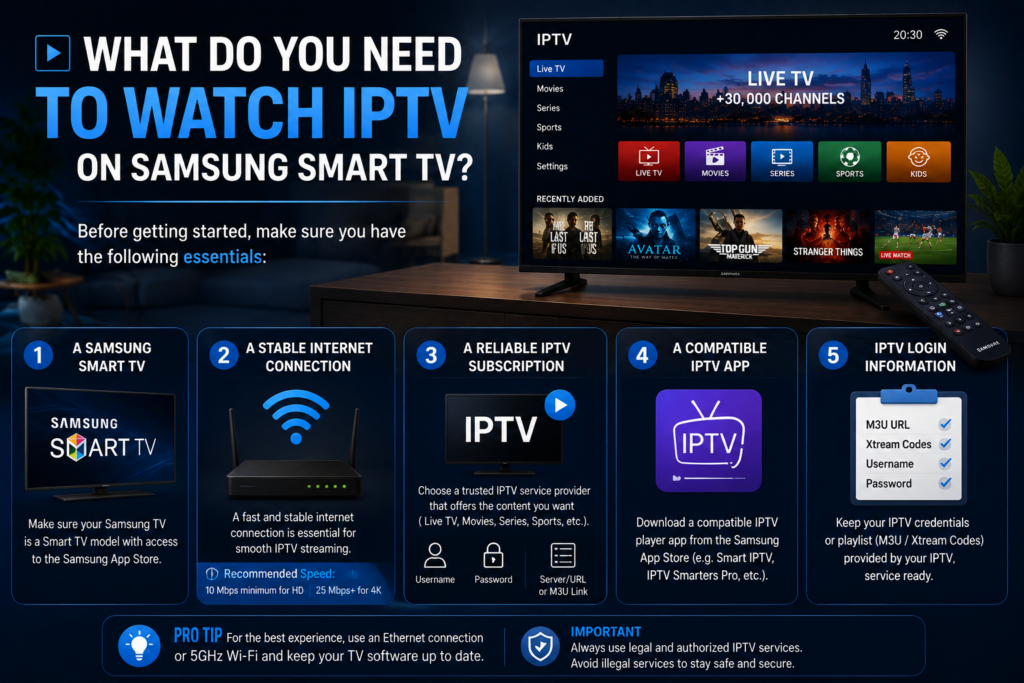
Before starting the installation, prepare the following:
1. A Samsung Smart TV
Your television should have Smart TV functionality and an Internet connection.
2. A stable Internet connection
IPTV relies heavily on your Internet connection. For HD and 4K streaming, a stable and sufficiently fast connection is important.
A wired Ethernet connection can be particularly useful if your router is close to the television. Otherwise, a strong 5 GHz Wi-Fi connection can also provide excellent results.
3. A legitimate IPTV subscription
You need an IPTV service that provides compatible login information and access to content you are authorized to watch.
Depending on the provider and player, you may receive information such as:
- Username
- Password
- Server URL
- M3U playlist
- Xtream Codes credentials
The information required depends on the IPTV application you choose.
4. A compatible IPTV player
An IPTV player is the application used to display your IPTV playlist or account on your Samsung Smart TV.
The availability of specific IPTV applications can change, so always check the Samsung app store on your television for currently supported options.
How to Watch IPTV on Samsung Smart TV Step by Step
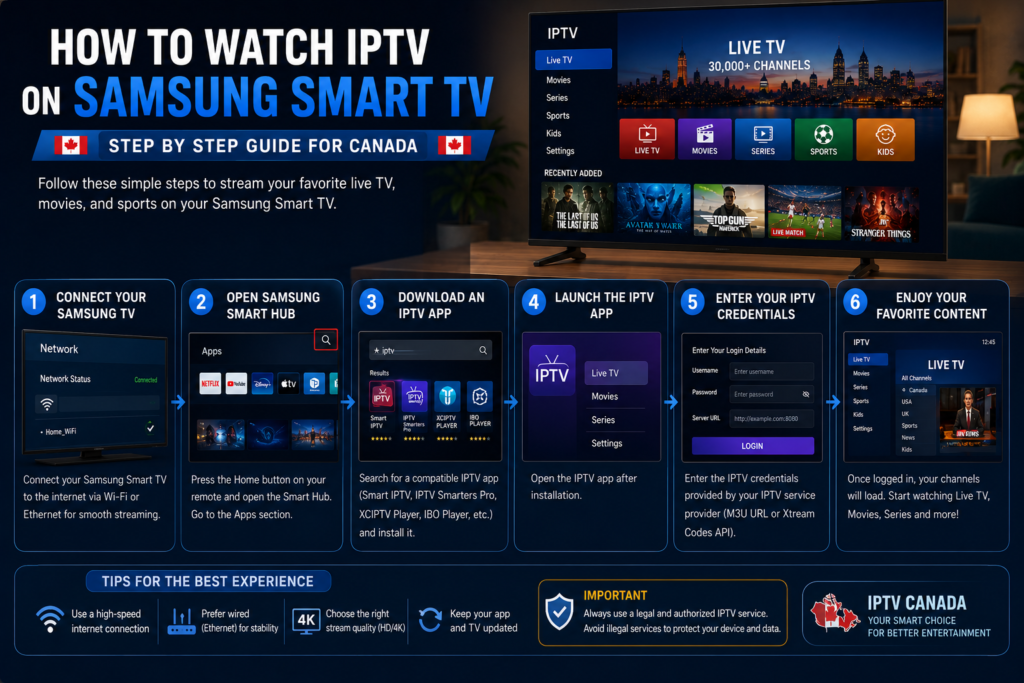
Step 1 – Connect Your Samsung TV to the Internet
Start by connecting your Samsung Smart TV to your home network.
Open the TV’s network settings and select your Wi-Fi network, then enter your Wi-Fi password.
If possible, test the connection before continuing. A stable connection is important because IPTV streaming depends on continuous data delivery.
For users experiencing buffering, an Ethernet connection can sometimes provide better stability than a weak wireless connection.
Step 2 – Open Samsung Smart Hub
Using your Samsung remote control, open the Smart Hub or Apps section.
This is where you can search for applications compatible with your television.
Use the search function to look for an IPTV player that is currently available for your Samsung TV.
Because applications and availability can change, the exact name of the application may differ between TV models and regions.
Step 3 – Install a Compatible IPTV Player
Once you have selected a compatible IPTV player, install it on your Samsung Smart TV.
After installation, open the application.
Most IPTV players do not provide television content themselves. Instead, they act as a media player that loads content supplied through your IPTV subscription.
Step 4 – Enter Your IPTV Credentials
Your IPTV provider should give you the information required to connect your subscription.
Depending on the application, you may be asked to enter:
- M3U URL
- Xtream Codes API
- Username
- Password
- Server address
Enter the information carefully.
If your provider gives you a specific setup guide, follow its instructions rather than entering random server information from the Internet.
Step 5 – Load Your Channels
After your credentials have been accepted, the IPTV player should load your available categories.
Depending on the subscription, you may see sections such as:
Live TV → Movies → Series → Sports → VOD → Favorites
The loading time depends on the size of the playlist and the speed of your Internet connection.
Once everything has loaded, select a channel and begin streaming.
Best IPTV Settings for Samsung Smart TV
Having a good IPTV subscription is only part of the equation. Your television and network settings can also affect streaming performance.
Use a Strong Wi-Fi Connection
If you use Wi-Fi, position your router where it can provide a strong signal to your Samsung TV.
A 5 GHz network can be useful when the TV is relatively close to the router.
For longer distances or difficult home layouts, Ethernet may provide a more consistent connection.
Choose the Appropriate Video Quality
If your IPTV service provides multiple quality options, select the resolution that matches your television and Internet connection.
For example:
- HD for standard streaming
- Full HD for higher image quality
- 4K for compatible televisions and content
Streaming 4K requires more bandwidth than standard HD, so a stable connection becomes even more important.
Restart Your TV and Router
If IPTV suddenly becomes slow or channels fail to load, restarting your Samsung TV and router can sometimes resolve temporary connection problems.
You can also close unused applications and make sure your TV software is updated.
How to Avoid IPTV Buffering on Samsung Smart TV
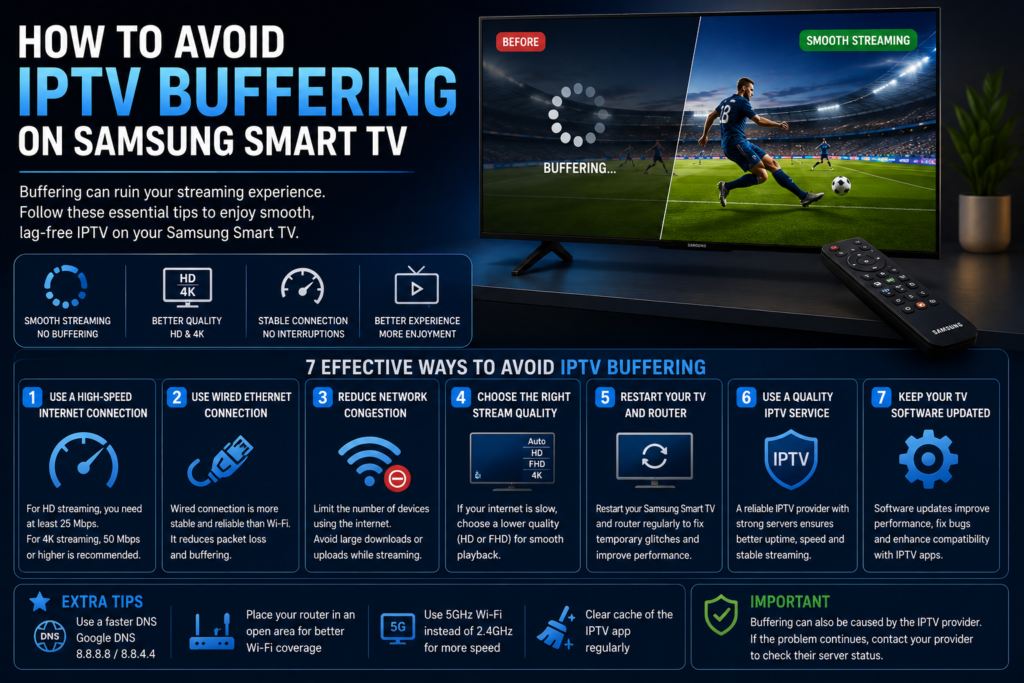
Buffering is one of the most common complaints associated with Internet streaming.
If you experience frequent buffering while using an IPTV Canada service, try the following:
Check your Internet speed
Run a speed test on your home network and compare the result with the requirements of your streaming quality.
Use Ethernet
If possible, connect your Samsung TV directly to your router using an Ethernet cable.
Reduce network congestion
Other devices downloading large files, playing online games, or streaming high-resolution video can consume significant bandwidth.
Restart your network
A simple router restart can occasionally solve temporary network issues.
Check whether the problem is provider-related
If other Internet services work normally but IPTV constantly buffers, the issue may be related to the IPTV service, playlist, or server rather than your Samsung TV.
IPTV Canada vs Traditional Cable TV
One reason IPTV has become increasingly interesting to Canadian viewers is flexibility.
Traditional cable television generally requires dedicated equipment and a fixed television package.
With IPTV, television content can be delivered through Internet-connected devices.
| Feature | IPTV Canada | Traditional Cable |
|---|---|---|
| Internet-based | Yes | Usually no |
| Smart TV compatibility | Often | Depends on provider |
| On-demand content | Often available | Depends on package |
| Multi-device access | Provider dependent | Provider dependent |
| Installation | Usually software-based | Often equipment-based |
| 4K availability | Provider dependent | Provider dependent |
The experience depends heavily on the IPTV provider, Internet connection, application, and device.
Why Samsung Smart TV Is a Good IPTV Option
Samsung Smart TVs are attractive for IPTV users because they can combine television and streaming functionality in one device.
Instead of connecting a separate streaming box, users may be able to install a compatible IPTV player directly on the television.
This can mean:
- Fewer cables
- Fewer devices
- Simple remote control
- Large-screen viewing
- Support for high-resolution content
- Convenient access to streaming applications
If you are comparing devices for your home setup, our related guide can help you compare other options:
Internal Link: Best IPTV Devices for Canadian Homes
This article can be linked naturally from this section to create a stronger internal SEO connection between your Samsung Smart TV guide and your broader IPTV Canada devices content.
Samsung Smart TV IPTV Troubleshooting
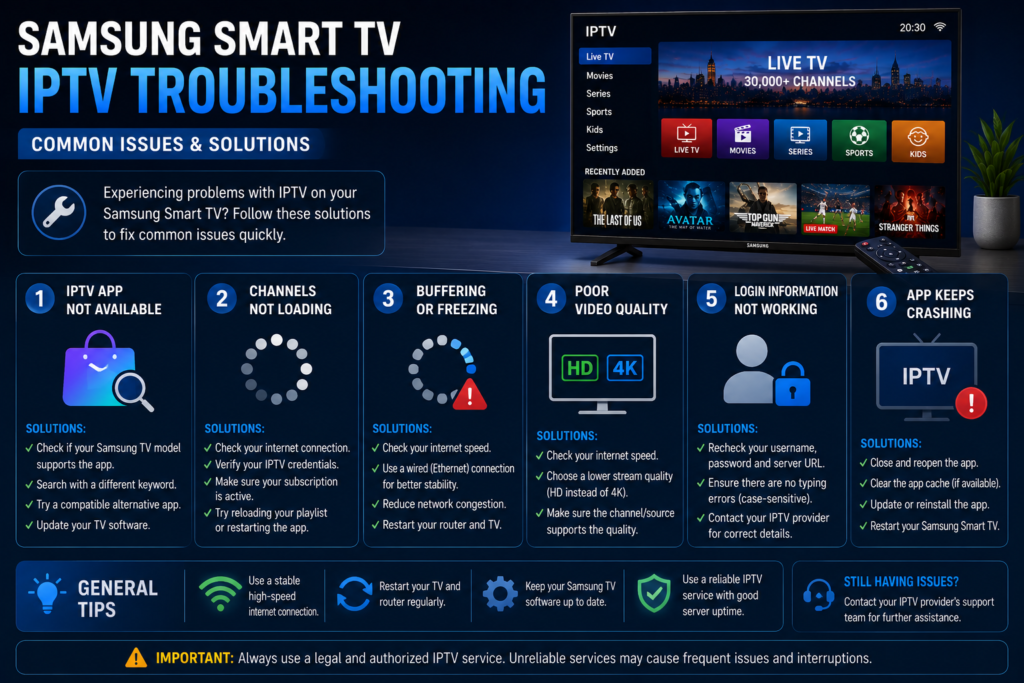
Sometimes the IPTV application may not work as expected.
Here are some common problems and possible solutions.
IPTV app is not available
Application availability can depend on your Samsung TV model and region. Check the Samsung app store and verify that your TV supports the application.
Channels are not loading
Check your IPTV credentials and Internet connection. If only specific channels fail, contact your IPTV provider.
IPTV keeps buffering
Test your Internet connection, restart your router, and consider using Ethernet.
The picture quality is poor
Check the available stream quality and your TV settings. A weak connection may also cause the player to reduce streaming quality.
Login information does not work
Verify that the username, password, and server information were entered exactly as provided.
Frequently Asked Questions About IPTV Canada on Samsung TV
Can I install IPTV directly on a Samsung Smart TV?
In many cases, yes. Compatible IPTV player applications may be available through Samsung’s application platform, depending on the TV model and region.
Do I need a Firestick for IPTV on Samsung TV?
Not necessarily. If your Samsung Smart TV supports a compatible IPTV player, you may be able to use IPTV directly without a Firestick.
However, external streaming devices can be useful if you want additional application compatibility or prefer a different interface.
Is IPTV available in Canada?
IPTV technology is available in Canada. However, the legality of specific services depends on whether the provider has the necessary rights to distribute the content. Always choose services and content that you are authorized to access.
What Internet speed is recommended for IPTV?
The required speed depends on video quality and network conditions. HD generally requires less bandwidth than 4K, while a stable connection is often more important than simply having a high advertised speed.
Can I watch IPTV in 4K on Samsung Smart TV?
Yes, if your Samsung TV supports 4K, the IPTV player supports the required format, the content is actually available in 4K, and your Internet connection can handle the higher bandwidth requirements.
Final Thoughts
Learning how to watch IPTV on Samsung Smart TV is relatively straightforward when you have a compatible television, a stable Internet connection, a suitable IPTV player, and a legitimate IPTV subscription.
Samsung Smart TVs provide a convenient way to enjoy Internet-based television without necessarily requiring an additional streaming device. With the right setup, Canadian viewers can enjoy live television and on-demand content on a large screen while keeping their entertainment setup simple.
For anyone researching IPTV Canada, the most important factors are not simply the number of channels advertised. Consider reliability, compatibility, streaming quality, customer support, application compatibility, and—most importantly—the provider’s authorization to distribute the content.
Before choosing an IPTV Canada subscription, test your Internet connection, verify device compatibility, and make sure the service you use provides content legally and transparently.